
This guide is part of the MusaBase Linux Gaming series. For the complete overview, see the Linux Gaming Roadmap: Complete Guide Series.
After spending a full year gaming side by side on both Linux and Windows, I finally reached my own verdict in the long-running Linux vs Windows gaming debate. Hi, my name is Abdullah Musa, and welcome to Musabase.
If you missed the setup guides, I’ve covered the essential tools in detail: Steam & Proton, Bottles, and Wine. Now, after using them for a full year, I tested everything from competitive titles to AAA games, modding, and performance tuning. Windows still dominates with native support and zero setup friction, but Linux has evolved into a serious gaming platform, offering impressive performance, better system control, and surprisingly smooth compatibility through tools like Proton and Wine.
⚡ TL;DR: Linux vs Windows Gaming
Tested on i5-4460 + RX 580 over 12 months of dual booting. Here is the honest verdict without reading the full article.
🎮 Game-by-Game Results- Red Dead Redemption 2: Linux wins during traversal (60-70 FPS vs 50-60 FPS). Windows edges ahead in dense cities like Saint Denis by 5-10%.
- Ori and the Will of the Wisps: Linux wins on smoothness. Windows gives 120+ FPS but stutters. Linux gives 90+ FPS with zero stutters.
- Quantum Break: Windows wins. Linux takes a 10-15% performance hit due to media foundation codec overhead.
- Spider-Man: Miles Morales: Linux wins big. 60-70 FPS stable on Linux vs 40-50 FPS unstable on Windows. 30-40% advantage.
- Need for Speed Heat: Windows wins big. Linux has broken car colors, audio glitches, and unstable framerates due to EA App and FMOD compatibility issues.
- You have an AMD GPU, Mesa drivers outperform AMD's own Windows drivers in Vulkan titles.
- You play single-player or story-driven games, most run well or better through Proton.
- You value smooth frame pacing over peak FPS, fewer background processes means fewer micro-stutters.
- You are tired of Windows telemetry, forced updates, and background services.
- You play competitive multiplayer with kernel-level anti-cheat, Valorant, Fortnite, Call of Duty, PUBG, Apex, these will not run on Linux.
- You want zero setup friction, install and play, no Proton versions or Wine prefixes.
- You have an NVIDIA GPU, the Linux driver gap is real.
- You rely on Windows-only modding tools like Vortex or game launchers that do not work well with Wine.
💡 My recommendation after 12 months: Do not choose. Dual boot. Keep Windows for anti-cheat games and broken titles. Use Linux for everything else. Install games on a shared NTFS partition so you only download once. Disable Windows Fast Startup to avoid filesystem corruption on the shared drive.
My Setup and System Specs
To make this comparison as fair as possible, I ran both operating systems on the same physical machine (dual‑boot) using identical hardware. Below are the specs and the software configurations I used throughout the year.
🖥️ Hardware
- CPU: Intel Core i5-4460 (4th Gen, 4 cores)
- GPU: AMD Radeon RX 580 8GB GME Edition
- RAM: 16 GB DDR3
- Storage: 256 GB SSD (Windows) + 500 GB HDD (Linux)
- Monitor: 1080p 60Hz
🪟 Windows 11 Pro
- Version: 25H2 (fully updated)
- GPU Driver: AMD Adrenalin Edition (latest stable)
- Game Libraries: Steam, Epic Games Store, Xbox App, GOG Galaxy
- Notes: Clean install, used as a typical gaming PC with default settings.
🐧 Arch Linux
- Kernel: Linux 6.12 → 6.13 (rolling updates)
- GPU Driver: Mesa (open-source, latest stable)
- Compatibility Layers: Proton (via Steam), Bottles, Wine
- Desktop Environment: KDE Plasma / Wayland
- Notes: Full system updates applied weekly, gaming tools configured as per my setup guides.
All tests were conducted on this exact hardware. Rather than focusing on comparing performance and FPS on both OSes, this article will focus on real‑world compatibility, playability, and overall experience, from indie gems to AAA titles, to help you understand how each OS handles actual gaming scenarios.
Game Compatibility on Linux VS Windows
When I first made the jump from Windows to Linux in early January 2025, I had no idea how different gaming would feel on the other side. Sure, the games themselves are the same, but when it comes to performance and tuning, Linux was all over the place, some titles ran surprisingly better than on Windows, while others lagged far behind. What a difference a year makes. Over the past 12 months, Linux gaming has improved at a breathtaking pace, and it’s still getting better.
Windows Side
On Windows, the process is simple: download a game launcher or installer, click “Next” a few times, and hit “Play.” If your hardware meets the requirements, the game runs fine OOTB. Linux, as we have seen in my setup guides, is a different story. We are not just installing a game, we are often configuring a compatibility layer, choosing the right runner, managing Wine prefixes, and occasionally tweaking environment variables.
The Big Picture
The main reason for this rapid evolution is the Steam Deck. When Valve announced their handheld console and said it would run Linux, they made a clear statement: they were going to make Linux gaming not just viable, but robust enough for mainstream users. Just like their legendary games, Valve put serious engineering behind the Steam Deck’s operating system, and the entire Linux gaming ecosystem reaped the benefits.
| Aspect | Windows | Linux |
|---|---|---|
| Installation Friction | ✅ Installer → Play (zero effort) | ⚠️ May need Proton, Bottles, or manual tweaks |
| Steam Games | ✅ Native, flawless | ✅ Proton works for vast majority (check ProtonDB) |
| Non‑Steam (Epic, GOG, etc.) | ✅ Native launchers | ⚠️ Via Bottles, Heroic, Lutris – mostly works |
| Kernel‑Level Anti‑Cheat Games | ✅ Full support (Valorant, Fortnite, etc.) | ❌ Generally unplayable (check AreWeAntiCheatYet) |
| AAA Single‑Player | ✅ Native, high compatibility | ✅ Most run well with Proton/Bottles |
| Modding Support | ✅ Native mod managers (Vortex, etc.) | ⚠️ Possible with manual tweaks; some tools work via Wine |
The Proton Revolution
At the heart of this revolution is Proton, a compatibility layer that translates Windows API calls into something Linux can understand. Valve didn’t build Proton from scratch; they took the incredible work of the Wine project and forked it into a version fully integrated with Steam. The result is a translation layer that “just works” for thousands of Windows games, often with no tinkering required. Thanks to Proton, Linux has gone from a DIY gaming experiment to a legitimate, user‑friendly platform. But the Linux story doesn’t just start or stop here.
Beyond Steam: Bottles and Wine
While Proton has been a game‑changer for Steam titles, its only limitation is that it works inside Steam’s ecosystem. For games from Epic, GOG, standalone installers, or any other source, we need a different approach. That’s where Wine and tools built on top of it come into play.
Wine itself has a long history, it was first introduced in 1993, back when Windows 3.1 was the standard and Linux had just been released for public use. Despite common misconceptions, Wine is a translation layer that converts Windows API calls into POSIX‑compatible calls that Linux can understand. This foundational work made everything else possible.
Because Wine is open‑source, the community has built countless tools on top of it. Valve’s Proton is one, but there’s also Bottles, Lutris, Heroic Games Launcher, and more. The open nature means skilled developers constantly improve these tools, for instance take Proton‑GE, a community fork with extra patches, is a perfect example of how this ecosystem evolves faster than any single company could manage alone.

This is where Bottles shines. It provides a clean graphical interface to create isolated “bottles” (Wine prefixes) for each game or application. You can set a specific runner (like Proton‑GE, Soda, or Sys-Wine), install dependencies, and launch your game without ever touching the terminal. For Epic and GOG games, I often used Heroic Games Launcher (which also uses Wine under the hood), but for more control or games with custom installers, Bottles became my go‑to.
My RDR2 Struggle
But compatibility isn’t always smooth sailing, here’s where I hit my first major wall. When I first jumped from Windows to Linux, I tried running all the games I used to play on Windows. My priority was Red Dead Redemption 2 (one of my favorite games of all time). On Windows, it barely held 60 FPS with high textures and everything else on medium. And when I decided to run it on Linux (with my little knowledge at the time), I tried Wine, Bottles, and Lutris, but none worked. I knew Steam could help, but back then I was new to Linux gaming and didn’t dive deep into tweaking Proton inside Steam. Frustrated, I ended up accidentally deleting the game because I was getting a lot of help from ChatGPT. That experience taught me a hard truth: Linux isn’t Windows. We can’t just install a game and hit play. We need the right combination of tools, dependencies, and runners. ProtonDB became my best friend for checking what works and what doesn’t.
But once a game is running with the correct setup, proper dependencies and a well‑chosen runner, Linux often delivers a more stable experience than Windows for many AAA titles. In my own testing, games like Spider‑Man: Miles Morales, God of War Ragnarök, GTA V, and Forza Horizon ran incredibly well. Of course, performance depends less on the Linux kernel itself and more on the runner you choose and your hardware. With an RX 580 and i5‑4460, I’ve seen some titles perform on par with Windows, and in a few cases, even better. The gap isn’t fully closed, especially with games that use unconventional launchers or invasive anti‑cheat but the progress in just 12 months has been astonishing.
The Anti‑Cheat Wall: Why Competitive Gaming Remains a Challenge on Linux
If you primarily play competitive multiplayer games, especially first‑person shooters and MOBAs, Linux still lags far behind Windows. The problem isn’t Linux itself, but the decisions made by game developers and companies. Many popular titles rely on kernel‑level anti‑cheat systems that are designed to run deep inside the operating system to detect cheating. These anti‑cheat solutions often have no Linux version, and developers have been slow to enable support for Linux compatibility layers like Proton.
What is kernel‑level anti‑cheat? Traditional anti‑cheat software runs in user space, but kernel‑level anti‑cheat installs a driver that operates with the highest system privileges. This allows it to monitor system activity more thoroughly, but it also raises privacy and security concerns. Because it hooks deeply into Windows, making it work seamlessly with Wine/Proton is technically challenging, and most game studios simply choose not to invest the resources.
The result is a hard wall: many of the biggest multiplayer titles simply do not run on Linux, and there’s no community workaround. Games like Valorant (Vanguard), Fortnite (Easy Anti‑Cheat + BattlEye), Call of Duty: Warzone (Ricochet), PUBG, Battlefield 6, and Apex Legends are unplayable. Even if the game’s engine runs perfectly under Proton, the anti‑cheat component will block you from joining servers.
Thankfully, there are exceptions. Valve’s own games, such as Dota 2, Counter‑Strike 2, and Team Fortress 2, work flawlessly because they use server‑side detection or have native Linux versions. Some other titles, like The Finals and Hunt: Showdown, have recently enabled Easy Anti‑Cheat support for Proton, showing that progress is possible, but it remains a case‑by‑case battle.
For me, since the only multiplayer game I play regularly is Dota 2, this wall hasn’t been a deal‑breaker. But if your gaming library includes any of the titles above, you need to know that Linux will leave you locked out. Always check ProtonDB or Are We Anti‑Cheat Yet? before making the switch.
Game Playability on Linux vs Windows
Playability goes beyond raw FPS. It's about consistency, smoothness, and how a game feels during extended sessions. Here's how five very different titles performed on the same hardware, side by side, over months of real gameplay.
Red Dead Redemption 2


Let's start with the big one, my favorite game. I spent more time tweaking and testing RDR2 than any other title, and the results genuinely surprised me.
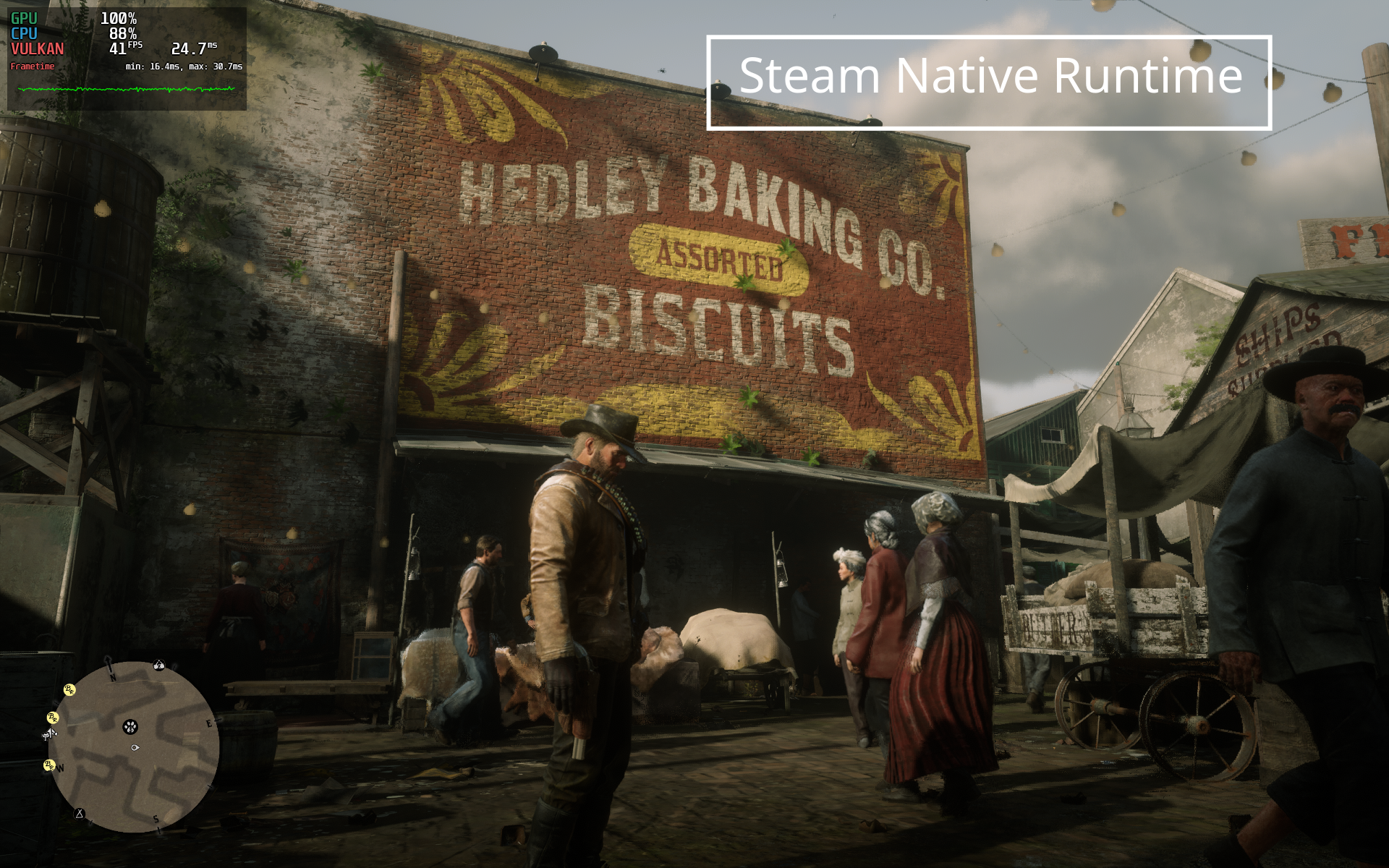
On Windows, I run RDR2 with High Textures and everything else on Medium, using the Vulkan graphics API. It barely holds 60 FPS. In high-density areas like Saint Denis or Strawberry, it drops to around 40-45 FPS. Traveling across the map, it mostly stays in the mid-to-high 50s, occasionally hitting 60 but rarely staying there.
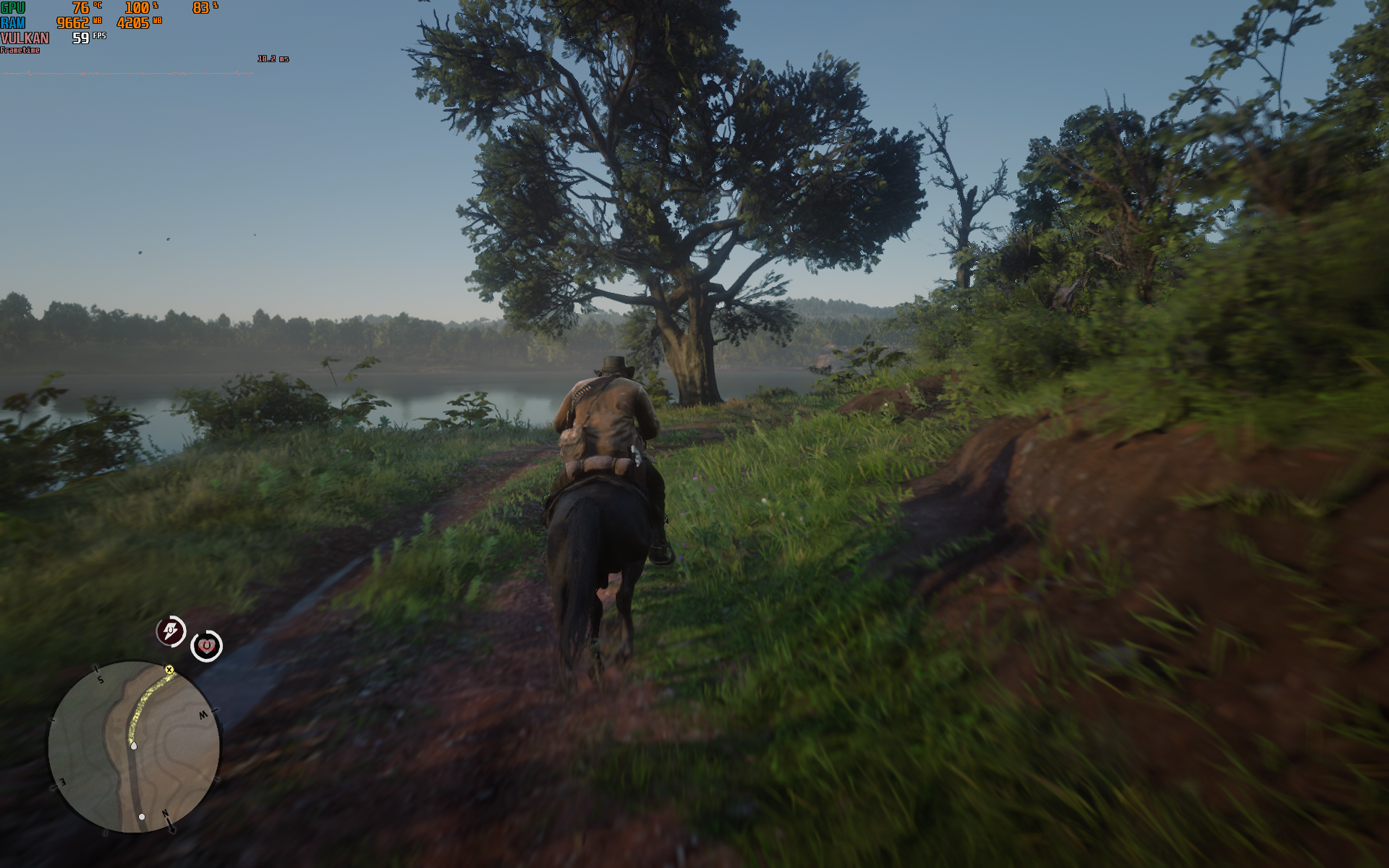
Linux is a different story. With GE‑Proton 10.27 installed via ProtonUp‑Qt and these Steam launch options:
mangohud RADV_TEX_ANISO=0 PROTON_ENABLE_HDR=1 PROTON_ENABLE_WAYLAND=1 ENABLE_HDR_WSI=1 %command%…the game runs at 60-70 FPS during traversal. That's a 15-20% improvement over Windows in most open-world scenarios.

However, in highly detailed or heavily populated areas like Saint Denis, Windows slightly outperforms Linux, Windows holds 40-48 FPS, while Linux drops to 38-45 FPS. That's about a 5-10% advantage for Windows in the most demanding scenes.
Why does this happen?
- Mesa RADV drivers are exceptionally well‑optimized for AMD GPUs like for RX 580, often outperforming AMD's own Windows drivers in general Vulkan workloads.
- However, game engines that heavily stream assets in dense areas can expose Vulkan pipeline compilation overhead in Proton, which isn't present in a native Windows environment.
- GE‑Proton 10.27 includes bleeding‑edge Wine, DXVK, and vkd3d‑proton updates, which improved memory management and reduced CPU bottlenecks specifically for RDR2.
- RADV_TEX_ANISO=0 disables forced anisotropic filtering at the driver level, reducing VRAM pressure and improving frame stability.
Ori and the Will of the Wisps


This one was unexpected.
On Windows, with High settings, Ori easily pushes 120+ FPS. But here's the catch: it occasionally stutters, and the audio glitches along with it. Not game-breaking, but annoying for a fast-paced platformer.
On Linux, the same game runs at 90+ FPS, that's about a 25% lower peak framerate on paper. But in practice? Zero stutters. I've completed more than half the game on Linux, and it's been buttery‑smooth the entire time. No audio glitches, no hitches, no nothing.
Windows: out-of-the-box. Linux: also out-of-the-box, through Steam, Bottles, or plain Wine, no tweaks required.
Why the smoothness on Linux?
- This is a classic example of frame pacing mattering more than raw FPS. Windows may push higher peak numbers, but background processes (telemetry, Windows Update, Defender scans) introduce micro‑stutters that Linux simply doesn't have.
- The Mesa RADV driver delivers more consistent frame times, even if the peak FPS is lower.
- Linux's lighter scheduler and lower DPC latency mean fewer interruptions during gameplay.
Quantum Break


Time travel comes with performance trade‑offs, on both OSes.
On Windows, with a mix of High and Medium settings, Quantum Break runs at a stable 45-65 FPS. It's smooth, predictable, and requires no tinkering.
On Linux, running through Bottles with the Soda runner, the same settings yield 35-60 FPS. That's roughly a 10-15% performance penalty across the board.
Why the gap?
- Quantum Break uses a custom engine with heavy reliance on Windows‑specific media foundation codecs for its live‑action cutscenes. Wine's media foundation support has improved, but it still adds overhead.
- The game also aggressively streams textures, which interacts poorly with Proton's memory mapping in some scenes.
- Could this gap be closed? Possibly. A different runner (Proton‑GE, or a newer Wine version with vkd3d‑proton updates) might improve performance. But out of the box, Windows wins this round.
Spider-Man: Miles Morales


This is where Linux absolutely shines.
On Windows, with a mix of High and Medium settings plus AMD FSR 3.1 and frame generation, Miles Morales is unstable. It struggles to hit 60 FPS, mostly hovering in the mid‑40s, and frame times are all over the place.
On Linux, running through Bottles with GE‑Proton 10.24, the same settings deliver high 60s to 70 FPS, and even in high‑detail or crowded areas, it rarely drops below 50 FPS.
That's a roughly 30-40% performance advantage for Linux in this title.
Why does Linux crush it here?
- Mesa RADV drivers are exceptionally optimized for Vulkan, and Miles Morales uses Vulkan as its primary rendering API. The open‑source driver stack has less overhead than AMD's Windows driver in this specific engine.
- The scheduler and memory management in the Linux kernel handle the game's aggressive asset streaming more efficiently.
- GE‑Proton 10.24 included specific backports and Vulkan patches that improved performance in Insomniac's engine.
Need for Speed Heat


Not every story has a happy ending.
On Windows, with High settings, Need for Speed Heat easily delivers 55-60+ FPS. It's stable, looks great, and runs without issues.
On Linux? A mess. I tried multiple runners, different Wine versions, various Proton‑GE builds, and Bottles configurations. Nothing gets it consistently above 60 FPS. Most of the time, it struggles to maintain playable framerates.
And there's more: on Linux, car colors are broken. Dark shades appear significantly darker, and bright colors look over‑saturated or blown out. Plus, audio glitches occur occasionally, with crackling or stuttering sound.
Why is this game so broken on Linux?
- Need for Speed Heat relies on the EA App (formerly Origin), which has persistent compatibility issues with Wine/Proton. The launcher itself introduces overhead and instability.
- The game uses a custom rendering pipeline for its neon‑lit aesthetic. Color space conversions aren't properly translated by Wine's DirectX‑to‑Vulkan layers.
- Audio issues stem from pipewire/pulseaudio interaction with the game's FMOD audio engine, a known issue that affects multiple EA titles.
Summary Table
| Game | Windows Performance | Linux Performance | Winner |
|---|---|---|---|
| RDR2 | 40-60 FPS, drops in cities | 60-70 FPS traversal, 38-45 in cities | Linux |
| Ori WOTW | 120+ FPS with stutters | 90+ FPS, smooth | Linux (smoothness) |
| Quantum Break | 45-65 FPS stable | 35-60 FPS | Windows |
| Spider-Man: MM | 40-50 FPS unstable | 60-70 FPS stable | Linux (big win) |
| NFS Heat | 55-60+ FPS | Unstable, color/audio bugs | Windows (big win) |
The Takeaway I Can Give
Linux delivers a smoother, more stable experience in Vulkan‑native titles (Spider‑Man, RDR2 traversal) and games with lighter system overhead (Ori). Windows still leads for problematic engines (Quantum Break) and launcher‑heavy titles (NFS Heat). If you value frame pacing over peak FPS, Linux is a serious contender. But for pure compatibility across a wide library, Windows remains the safer bet.
Important note: These differences in FPS are based on my specific PC (i5-4460, RX 580, 16GB DDR3). Your results may vary depending on your hardware. These stats are only meant to give you an idea of what to expect based on your OS choice and hardware configuration.
I have my PC set up as a dual boot. If a game doesn't perform well on Linux, I simply boot into Windows and play it there. If you're also dual booting, my advice is: stick to dual boot. Don't completely switch to Linux and forget Windows entirely. Despite all the shenanigans Windows pulls, forced updates, telemetry, background services, it's still a decent OS if you know how to tame it. Remove unnecessary features, disable telemetry, and turn off always‑running background services (like I did), and Windows becomes a genuinely solid gaming platform.
Final Verdict: Who Should Actually Switch?
After a full year of dual‑booting, testing dozens of games, banging my head against Wine prefixes, and finally finding that sweet spot where Linux just feels right, I can give you a straight answer.
Let me be clear: Linux gaming in 2026 is not a fantasy. It’s real, it’s improving faster than ever, and for many gamers, it’s already better than Windows. But “better” depends entirely on what you play and how much tinkering you enjoy.
🐧 Go with Linux if...
- You have an AMD GPU (the Mesa drivers are magic)
- You mostly play single‑player, story‑driven, or indie games
- You’re tired of Windows forced updates, telemetry, and background noise
- You value smooth frame pacing over raw peak FPS
- You don’t mind spending an afternoon setting up Proton, Bottles, or Wine once, then enjoying stability for months
- You want a console‑like, lean gaming OS (try Bazzite or CachyOS)
🪟 Stick with Windows if...
- You primarily play competitive multiplayer games with kernel anti‑cheat (Valorant, Fortnite, Call of Duty, PUBG, Battlefield etc.)
- You want zero setup friction, just install and play
- You have an NVIDIA GPU and want maximum performance without tweaking (the Linux NVIDIA driver gap is real)
- You rely on Windows‑only modding tools or game launchers that don’t play nice with Wine
- You don’t want to learn what a “Wine prefix” is, and that’s perfectly fine
My Personal Take (One Year Later)
When I started this experiment in January 2025, I expected to find that Linux was a fun hobby but not a real Windows replacement for gaming. I was wrong, but also not completely. Today, I use both OSes about 50-50. I do most of my development and game testing on Linux, but when it comes to pure gaming time, Windows still gets a slight edge. That said, if a game runs noticeably smoother on Linux, like Spider‑Man: Miles Morales or RDR2, I'll happily play it on Linux. Otherwise, I just boot into Windows and play there. It's simple, no drama, and that's the beauty of dual booting.
The dual‑boot setup is my safety net, and I recommend it to anyone curious. You don’t have to delete Windows. Just shrink its partition, install Linux, and enjoy the best of both worlds.
The progress in 12 months alone has been noticeable, no doubt about that. But let's not get carried away. Linux gaming still requires tinkering: config files, custom Proton versions, launch options, and the occasional rabbit hole of Wine prefixes. You can get a smoother experience than Windows in some titles, but only after you put in the work. Until that friction is gone, Windows remains completely fine for anyone who just wants to install a game and play. The future might be brighter, but we're not there yet.
Thanks for Reading This Series
If you made it this far, thank you. This article wraps up my four‑part series on Windows gaming on Linux:
- Part 1: Steam & Proton Setup
- Part 2: Bottles Setup
- Part 3: Wine Setup
- Part 4: This final comparison & verdict
Now go play some games, on whatever OS makes you happy. And if you decide to give Linux a real shot, you know exactly where to start.
1O1 Out, I'll see you in the next one!
💬 What’s your experience? Have you tried gaming on Linux? Drop a comment below, I’d love to hear which games work (or don’t) for you.
Frequently Asked Questions: Gaming on Linux vs Windows
Is Linux better than Windows for gaming?
It depends on what you play. Across 12 months of testing, Linux won on Red Dead Redemption 2, Ori and the Will of the Wisps, and Spider‑Man: Miles Morales, while Windows won on Quantum Break and Need for Speed Heat. Linux's strengths are AMD GPU performance (via Mesa drivers), smoother frame pacing, and fewer background processes causing stutters. Windows's clear strength is zero setup friction and full support for kernel‑level anti‑cheat games like Valorant and Fortnite, which simply do not run on Linux at all. Neither OS wins outright, the honest answer, and my own setup, is dual booting both.
Which OS gives higher FPS: Linux or Windows?
It depends entirely on the game. In our testing, Spider‑Man: Miles Morales and Red Dead Redemption 2 ran faster on Linux (15‑40% improvement). Quantum Break and Need for Speed Heat ran better on Windows (10‑15% advantage). The Mesa open‑source drivers on AMD GPUs often give Linux an edge in Vulkan titles, while Windows still wins for some older or launcher‑heavy games.
Do I need to be a terminal expert to game on Linux?
Not anymore. Tools like Steam (Proton), Bottles, and Heroic Games Launcher provide graphical interfaces. However, for advanced tweaks (custom Proton versions, launch options, Wine prefixes) you may still need a few terminal commands. The learning curve is lower than ever, but Windows remains the zero‑terminal option.
Can I play Fortnite, Valorant, or Call of Duty on Linux?
No. These games use kernel‑level anti‑cheat (Vanguard, Easy Anti‑Cheat, Ricochet) that does not work under Wine or Proton. Unless the developer explicitly enables Linux support (e.g., The Finals or Hunt: Showdown), they will never run. This is the single biggest deal‑breaker for competitive gamers.
Should I switch to Linux completely for gaming?
The article strongly recommends dual booting instead. Keep Windows for games that don’t work well on Linux (like NFS Heat or anti‑cheat titles). Use Linux for development, testing, and games that run better there (like Spider‑Man or RDR2). A 50‑50 split gives you the best of both worlds without frustration.
Why does Linux feel smoother even with lower FPS?
Because of frame pacing. Linux has fewer background processes (telemetry, updates, antivirus scans) that cause micro‑stutters. In games like Ori and the Will of the Wisps, Windows gave 120+ FPS but stuttered occasionally, while Linux ran at 90+ FPS with zero stutters. Consistency often matters more than peak numbers.
What hardware is best for Linux gaming?
AMD GPUs are the sweet spot because of the excellent open‑source Mesa drivers. NVIDIA GPUs still lag behind on Linux (11‑18% performance gap in some titles). Intel CPUs work fine. For your reference, the test system used an older i5‑4460, RX 580, and 16GB DDR3 – Linux made many games run smoother even on this modest hardware.
How do I know if a specific game runs on Linux?
Check ProtonDB for Steam games (user reports, launch options, tweaks). For multiplayer titles, visit Are We Anti‑Cheat Yet?. Both are community‑driven and updated frequently.
What is Proton‑GE and do I need it?
Proton‑GE is a community fork of Valve’s Proton with extra patches (codecs, media foundation, controller fixes). It’s not required for most games, but it solved RDR2 performance issues on Linux. Install it via ProtonUp‑Qt and use it in Steam or Bottles.
Will my Windows game saves work on Linux?
Yes, if the game uses cloud saves (Steam Cloud, etc.) they sync automatically. For local saves, you can copy the save files from the Windows prefix to the Linux prefix – the article’s Bottles and Wine guides show you where to find the virtual drive_c folder.
Is Linux gaming ready for mainstream users?
Almost, but not completely. For single‑player and co‑op games (especially with AMD GPUs), Linux is a serious alternative. However, you still need to tinker: config files, custom Proton versions, launch options. Windows remains the “just works” platform for anyone who doesn’t want to learn those things. The gap is closing fast, but we’re not there yet.