
This guide is part of the MusaBase Linux Gaming series. For the complete overview, see the Linux Gaming Roadmap: Complete Guide Series.
Running Windows games on Linux is no longer experimental. With Steam and Proton, many modern Windows titles now run reliably on Linux, making it a practical gaming platform.
Welcome to MusaBase. In this first part of the Windows Games on Linux series, I show how I run Windows games on my daily-use Linux system using Steam for games and Proton for compatibility. I'm using Arch Linux btw, but you can treat it as a reference rather than a requirement.
This guide focuses on real-world setup and playability, not benchmarks or FPS chasing.
Here’s what we’ll cover:
- Enable Multilib support on Arch Linux
- Install Steam, Proton, and ProtonUp-Qt
- Understand Steam vs Steam Native Runtime
- Configure Proton properly for Windows titles
- Use ProtonDB to improve compatibility
- Install and test real Windows games on Linux
- Avoid common mistakes when gaming on Linux
Series: Once Steam is set up, continue to Bottles, Wine, Settling the long-running debate: Which OS is better? Gaming on Linux vs Windows.
⚡ TL;DR: Run Windows Games on Linux with Steam and Proton
A quick reference to get Windows games running on Arch Linux (or any modern Linux distro) using Steam, Proton, and ProtonUp-Qt – from enabling multilib to forcing compatibility tools.
-
Enable multilib support on Arch Linux:
sudo nano /etc/pacman.confUncomment these lines:
[multilib]
include = /etc/pacman.d/mirrorlist
Save and update:
sudo pacman -Syu -
Install Steam and ProtonUp-Qt:
yay -S steam
yay -S protonup-qt
For testing only (deprecated):
yay -S steam-native-runtime -
Launch Steam and check your runtime:
steam
STEAM_RUNTIME=0 steam
To check which runtime is active: Help → System Information → Operating System
Standard Steam shows a version number; Steam Native Runtime shows
<Runtime disabled> -
Install a custom Proton version using ProtonUp-Qt:
protonup-qtSelect Steam → Add version → choose GE-Proton and the required version → Install
⚠️ Ensure Steam is completely closed before installing any Proton version. For the full walkthrough, including Bottles, see my ProtonUp-Qt and GE-Proton guide.
-
Force Proton for a Windows game in Steam:
Right-click game → Properties → Compatibility
Check "Force the use of a specific Steam Play compatibility tool"
Select your Proton version from the dropdown
Add any launch options recommended by ProtonDB:
mangohud RADV_TEX_ANISO=0 PROTON_ENABLE_HDR=1 %command% -
Launch your game and compare runtimes:
Test the same game with both Standard Steam and Steam Native Runtime to see which performs better on your hardware.
Based on testing:
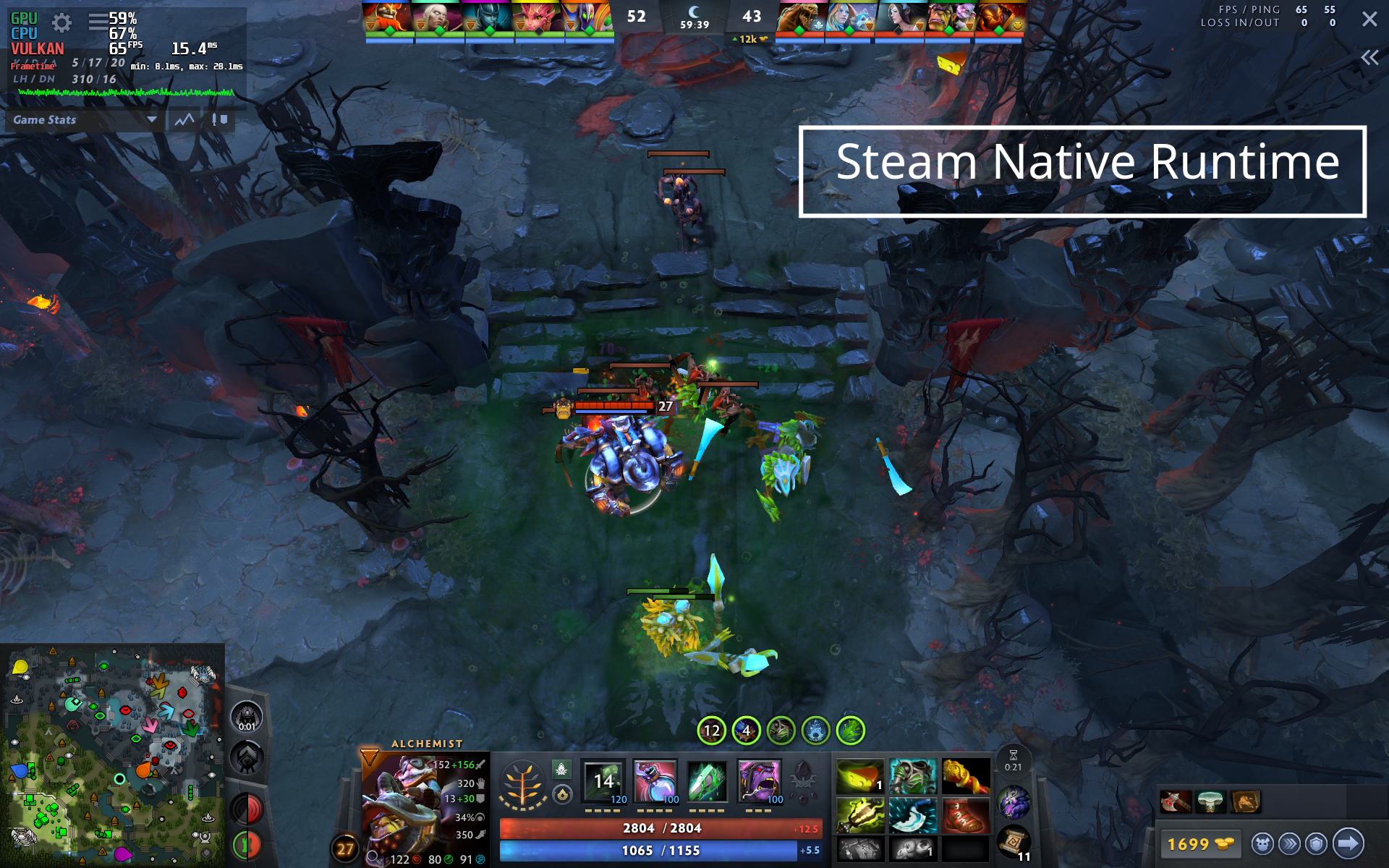
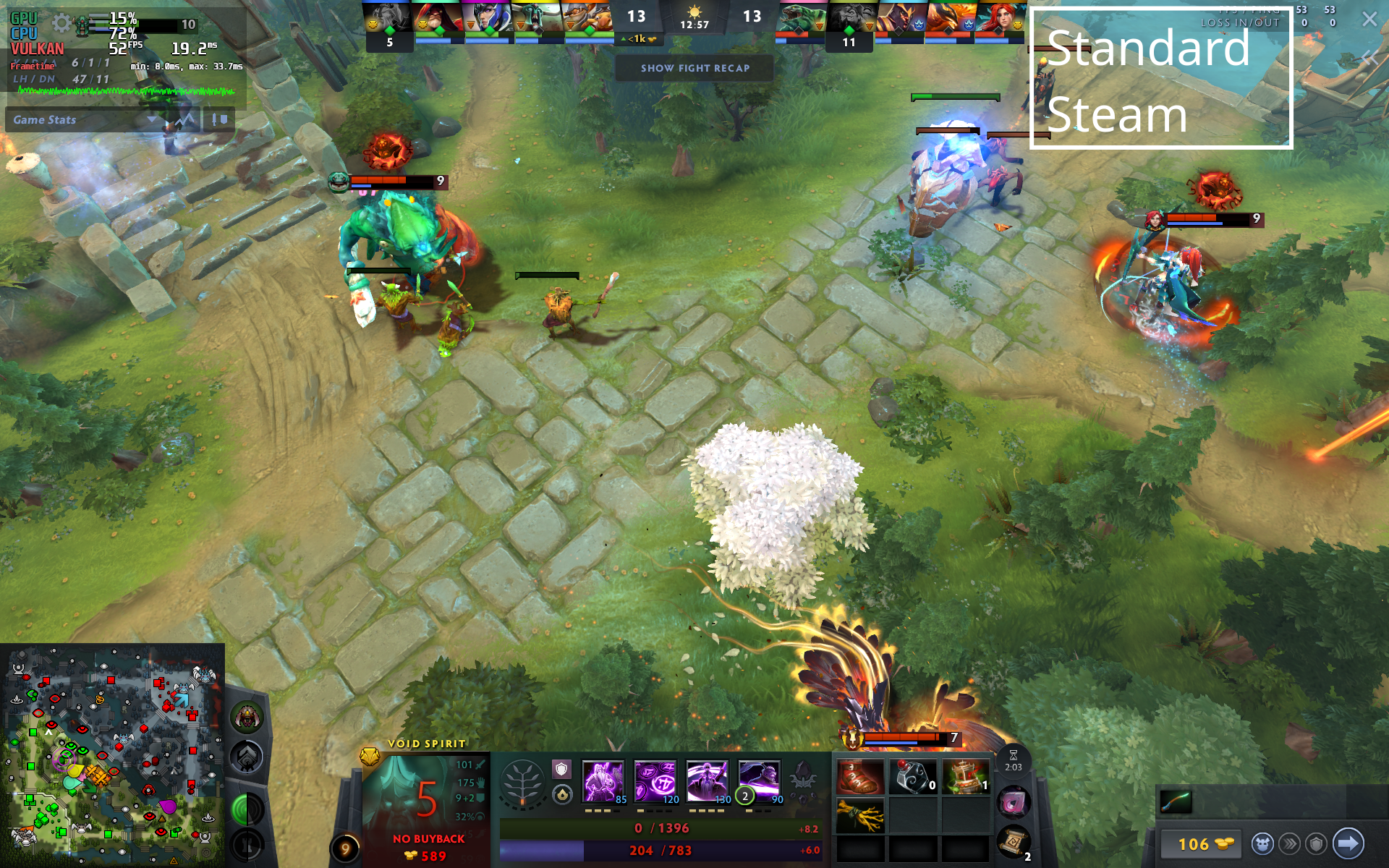
- Dota 2 (native): Smoother on Steam Native Runtime
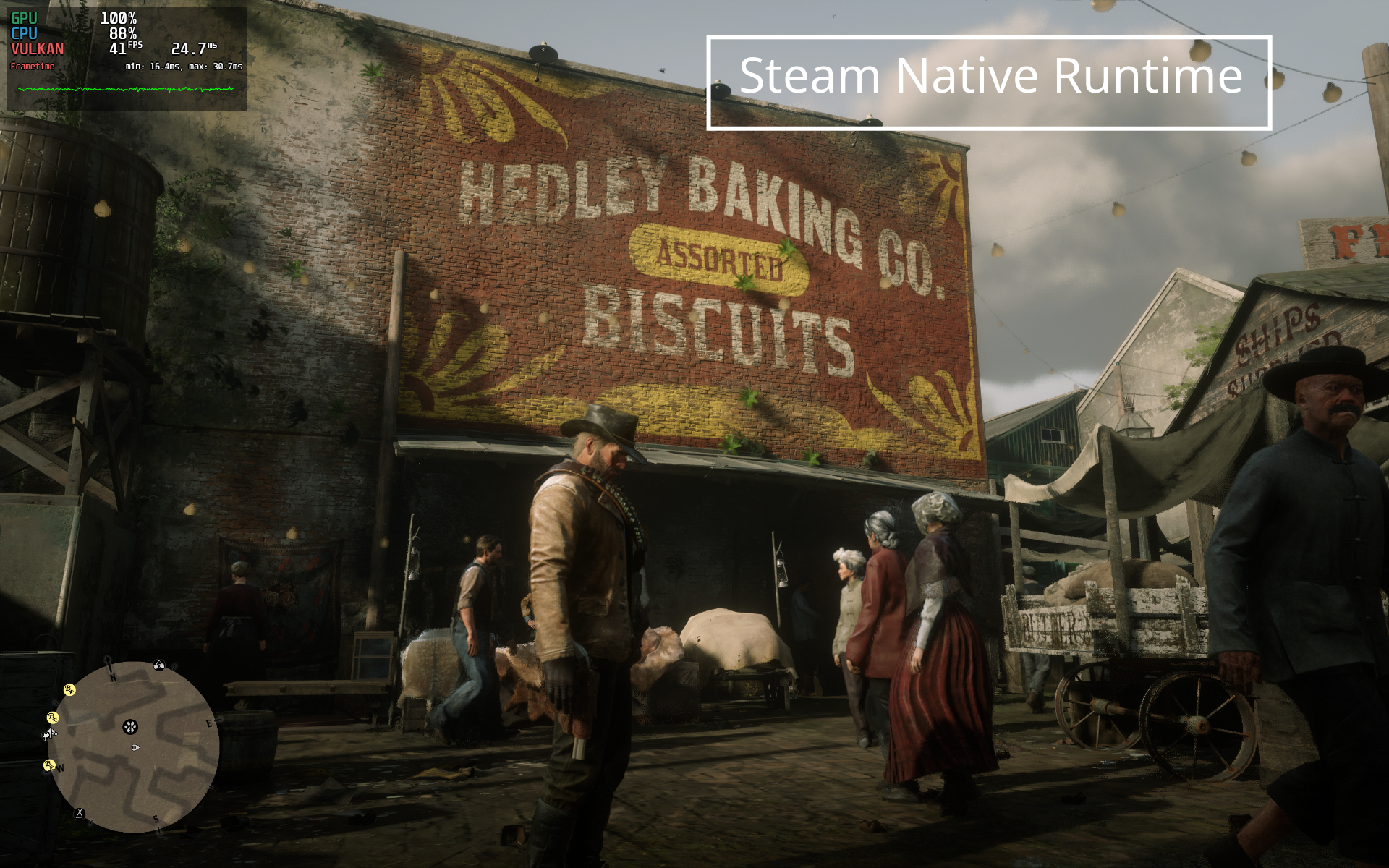
- RDR2 (Proton): More stable on Standard Steam
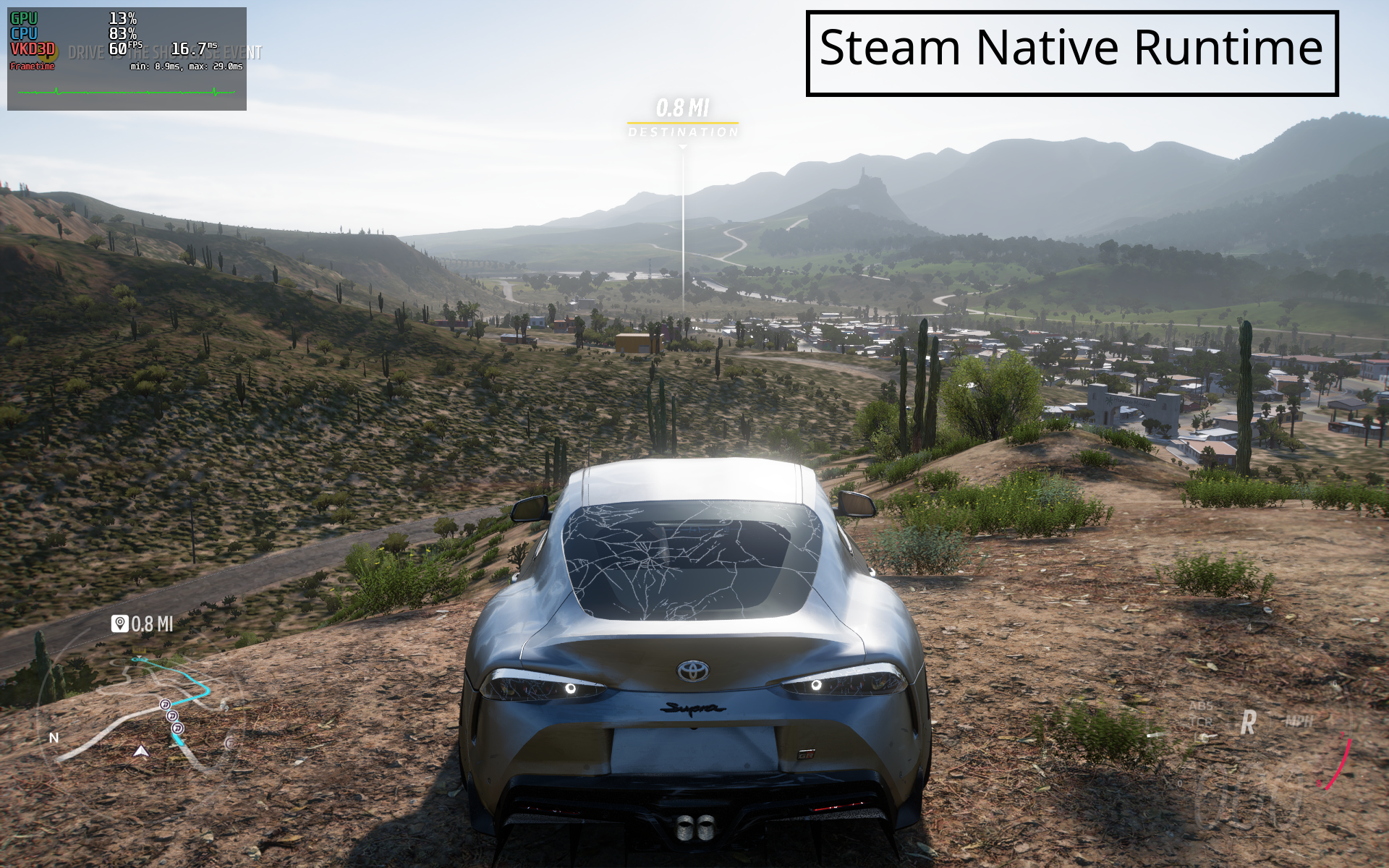
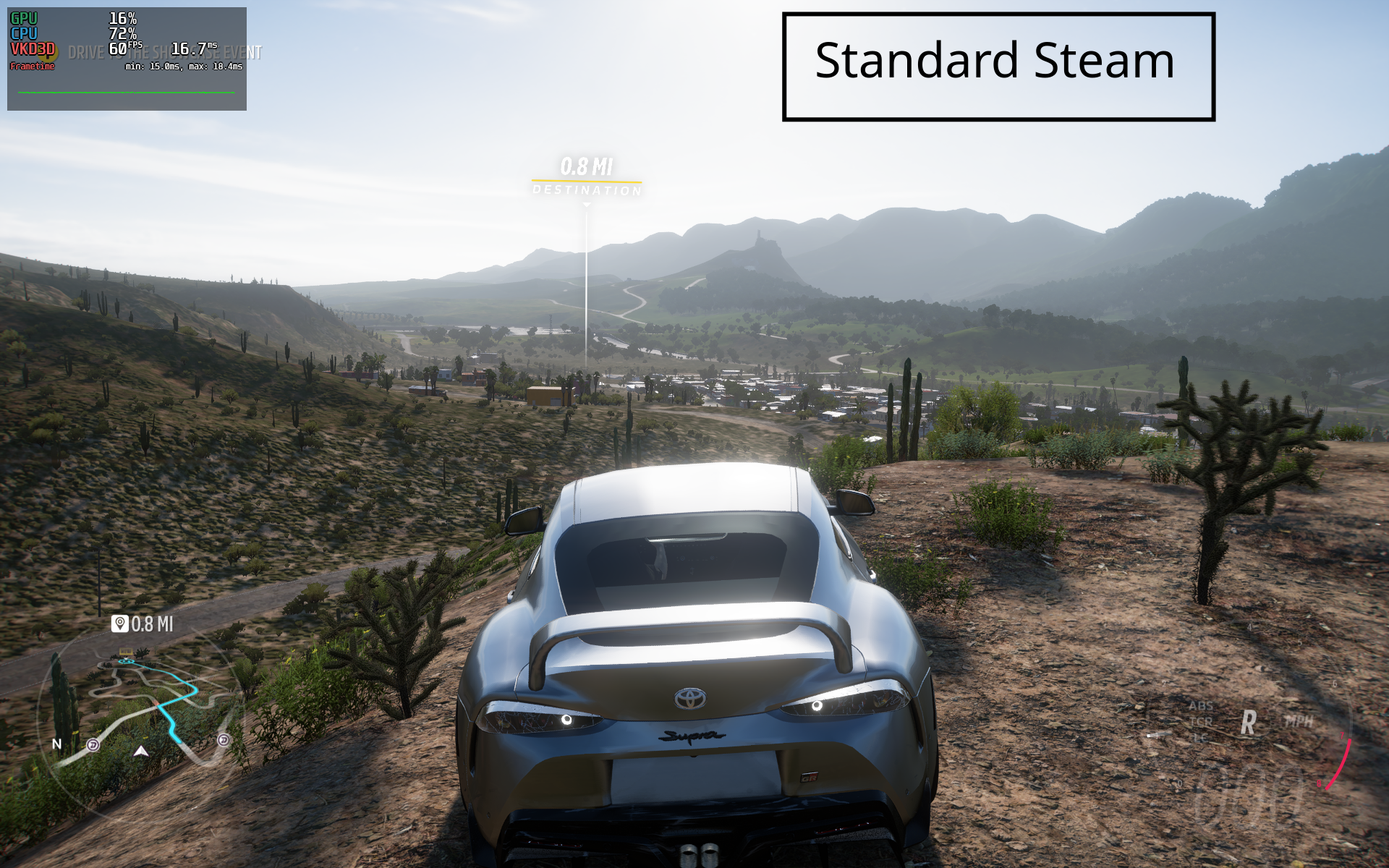
- Forza Horizon 5 (Proton): Better on Standard Steam
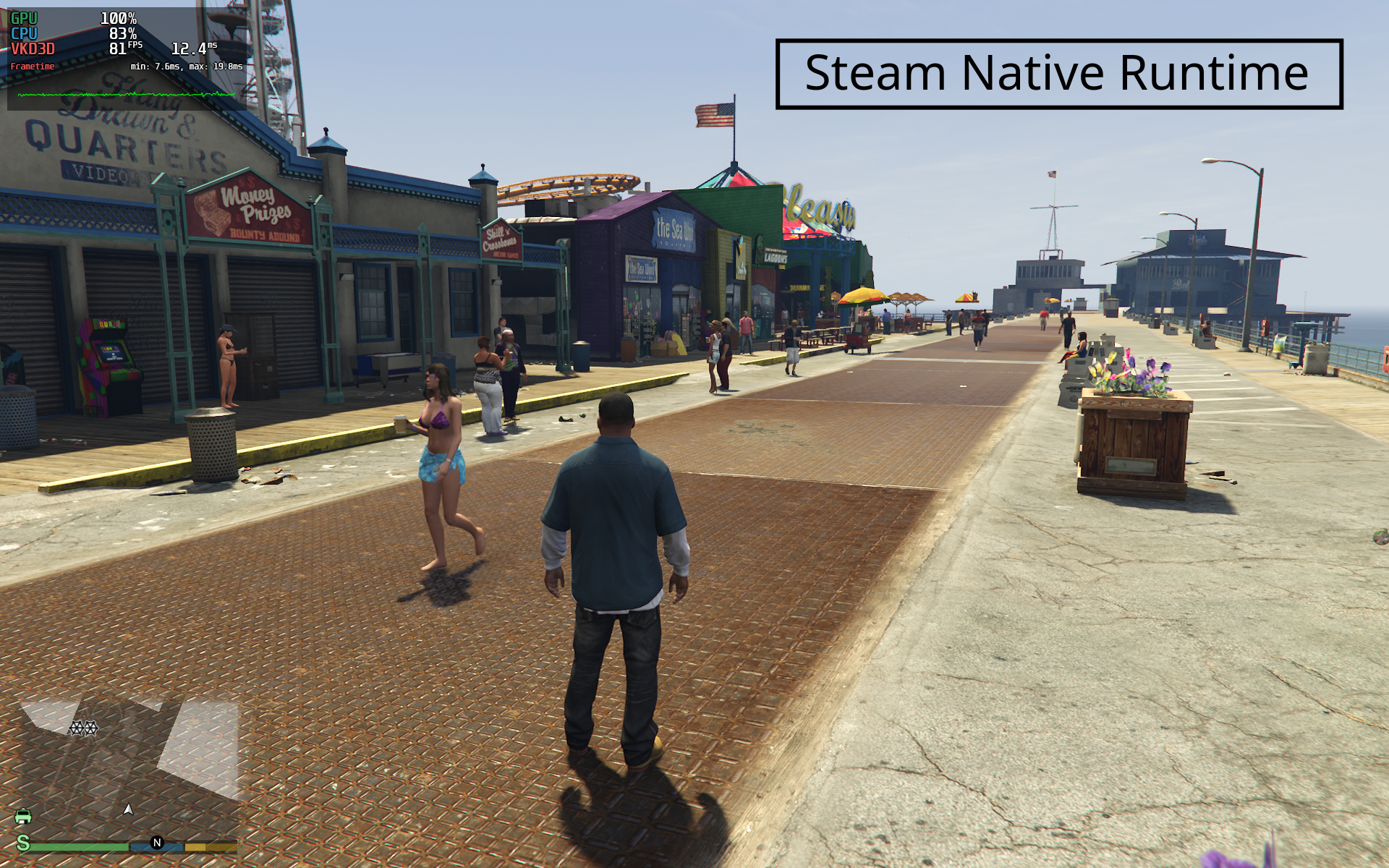
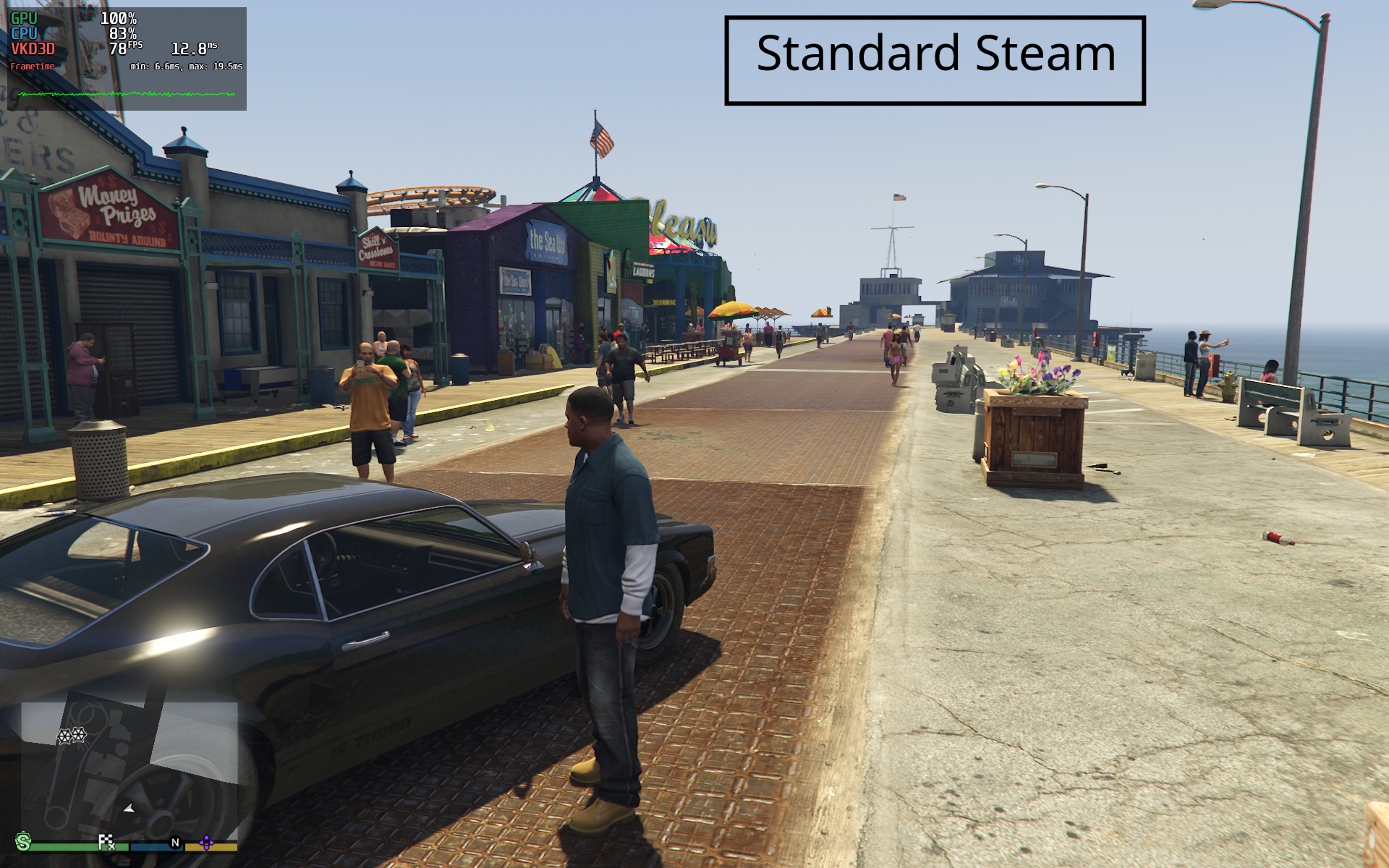
- GTA V Enhanced (Proton): Both work well
💡 Start with Standard Steam for the most stable experience. Only test Steam Native Runtime as a last resort for native Linux games with persistent stuttering. For Proton games, runtime choice has minimal impact – focus on finding the right Proton version via ProtonDB first. Most performance gains come from GPU drivers (Mesa) and kernel updates, not Steam runtime.
Prerequisites
Before continuing, make sure you have a working Linux system and are comfortable using the terminal. This guide uses Arch Linux with KDE Plasma as a reference setup, not a strict requirement.
- A Linux system with a graphical desktop environment
- A non-root user with sudo access
- An AUR helper (yay is recommended) to install tools commonly used for running Windows games on Linux.
- An active internet connection
My System Specifications
This guide is based on my own Linux gaming system, which I actively use for running Windows games on Linux with Steam and Proton. Everything discussed in this article is tested directly on this setup.

| Operating System | Arch Linux (Rolling Release) |
|---|---|
| Kernel Version | 6.18.6-arch1-1 |
| Desktop Environment | KDE Plasma 6.5.5 |
| Display Server | Wayland |
| CPU | Intel Core i5-4460 (4th Gen) |
| GPU | AMD Radeon RX 580 (8GB) |
| Memory | 16GB DDR3 |
| Storage | 3TB HDD |
| Graphics Driver | amdgpu (Mesa) |
| OpenGL Version | 4.6 Compatibility Profile (Mesa 26.0.0-devel) |
| Vulkan Runtime | 1.4.335 |
These specs are shared to give context to compatibility, stability, and behavior mentioned throughout the guide. Your experience may differ depending on your hardware, drivers, and system configuration.
Step 1: Enable Multilib Support on Arch Linux
To run Windows games on Linux with Steam and Proton, multilib support must be enabled. Many Windows games and Proton components still rely on 32-bit libraries, even on a 64-bit Linux system. Without multilib, games may fail to launch, crash on startup, or miss required dependencies.
- Open a terminal and run:
sudo nano /etc/pacman.conf
- In the pacman.conf file, scroll down using the Down arrow key and locate the following commented lines:
#[multilib] #include = /etc/pacman.d/mirrorlist - Uncomment both lines by removing the # character.
- Press Ctrl + O to save the file, press Enter to confirm, then press Ctrl + X to exit.


- After enabling multilib, the system must be updated so pacman can synchronize and install the required 32 bit libraries needed by Steam and other gaming tools.
- Run:
sudo pacman -Syu


Step 2: Install Steam, Steam Native Runtime, and Proton
This is where Windows gaming on Linux actually starts to work. Steam is the core platform for running Windows games on Linux and can be installed either with its bundled libraries or as Steam Native Runtime, which relies on system libraries. Both options support Windows games, but runtime choice can affect stability on some setups.
Windows games run on Linux through Proton, a compatibility layer developed by Valve and integrated directly into Steam. Proton allows most Windows-only games to install, launch, and run on Linux without additional manual configuration.
Once Steam, Proton, and the required runtimes are in place, running Windows games on Linux closely mirrors the Windows experience. While installation steps vary slightly between distributions, the overall workflow remains consistent across Arch Linux, Ubuntu, Fedora, and other modern Linux systems.
2.1: Steam Installation
- Installing the standard Steam client on Arch Linux is straightforward. Simply run the following command:
yay -S steam


2.2: Steam Native Runtime Installation (Deprecated)
- Run the following command:
yay -S steam-native-runtime
- After selecting the steam-native-runtime package, yay will prompt you to choose providers for lib32-libjpeg6 and libjpeg6.
- These providers are compatibility runtime libraries that allow Steam Native Runtime to use system provided shared libraries instead of Valve’s bundled runtime.
- For lib32-libjpeg6, select lib32-libjpeg6-turbo, which is the default (option 1), and press Enter.
- For libjpeg6, select libjpeg6-turbo (option 3) and press Enter.


2.3: ProtonUp-Qt Installation
Steam includes Proton by default, but in practice many Windows games need a different Proton version to run properly. Instead of managing this manually, ProtonUp-Qt provides a simple graphical way to install and switch between custom and community Proton builds, making Windows games much easier to run on Linux through Steam, Bottles, and Lutris.
I cover the complete installation (both AUR and Flatpak methods), launching ProtonUp-Qt, and installing GE-Proton for Steam and Bottles, step by step in my dedicated ProtonUp-Qt and GE-Proton setup guide.
Step 3: Launching Steam for the First Time on Arch Linux
With both Steam and Steam Native Runtime installed, the first launch process is mostly identical. This initial startup is where Steam prepares everything required to run Windows games on Linux through Proton, regardless of which runtime is selected.
On Arch Linux, Steam launches using the bundled Steam runtime by default. Even though the application menu shows two entries, Steam and Steam (Native), both typically start with the bundled runtime unless explicitly overridden. On my system, using environment variables is currently the only reliable way to control which runtime Steam actually uses.

You can launch Steam either from the application menu or by running the following command in the terminal: steam
3.1: Steam First Boot


3.2: Steam Native Runtime First Launch
To run Steam using the Steam Native Runtime, Steam must be launched from the terminal with an environment variable. This explicitly forces Steam to disable Valve’s bundled runtime and use the system-installed shared libraries instead, which directly affects how Windows games run through Proton on Linux.
- Open a terminal and run:
STEAM_RUNTIME=0 steam


- You can also explicitly launch Steam using Valve's bundled runtime with:
STEAM_RUNTIME=1 steam
Step 4: Steam vs Steam Native Runtime for Windows Games
When running Windows games on Linux through Proton, the choice between Steam and Steam Native Runtime often comes down to stability rather than features. The user experience for launching games, managing your library, and accessing Steam features remains effectively the same in both cases.
4.1: How to Check Which Steam Runtime Is Running
- Open Steam, click on Help in the top navigation bar, and select System Information from the dropdown menu. A new dialog box containing detailed system information will open.
- In the System Information dialog box, scroll down to the Operating System: section.


4.2: Standard Steam
- If you are running standard Steam (Valve’s bundled runtime), you will see an entry similar to the following:
Steam Runtime Version: steam-runtime_1.0.20251202.187498

4.3: Steam Native Runtime
- If you are running Steam Native Runtime, you will see this exact line instead:
Steam Runtime Version: <Runtime disabled>

Technical Clarification: It's important to understand what Steam Native Runtime actually affects. When you use STEAM_RUNTIME=0 or the steam-native script:
- Steam Client itself uses your system libraries instead of Valve's bundled ones.
- Native Linux games (like Dota 2) may see performance changes since they run outside containers.
- Proton/Windows games still run in their own compatibility containers (Sniper, Scout, etc.).
- The -compat-force-slr off flag in steam-native script helps, but Proton builds like GE-Proton always use containers.
The performance differences I observed (especially in Dota 2) likely come from the Steam client using fewer resources, freeing up CPU/RAM for the game itself. For Proton games, any difference is more subtle and system-dependent.
Step 5: Configure Steam and Proton for Running Windows Games on Linux
In this step, we will prepare Steam and Proton to run Windows games on Linux. This covers library setup, Proton selection, custom Proton installation, and forcing compatibility tools where needed.
5.1: Add Windows Games on Linux Using Steam
Storage handling on Linux is very similar to Windows. You can point Steam to any drive that already has a SteamLibrary folder and it will detect it automatically. In my case, the library already existed at /mnt/data/sdb6, so Steam picked it up and continued updating games from there. This method also works for adding standalone Windows games to Linux. You can add them as Non-Steam games and run them through Proton.
- Open Steam and click the + Add a Game button located in the bottom-left corner. A dropdown menu will appear with multiple options.
- Select Add a Non-Steam Game…. A new dialog box will open.
- In the dialog box, click Browse in the bottom-left corner.
- Navigate to the game’s executable file, select it, and add it as a Non-Steam Game.


5.2: How to Use Proton and ProtonDB to Run Windows Games on Linux
Some games on Steam work on Linux without any extra setup. For example, Dota 2 launches out of the box because it has native Linux support and is fully integrated into Steam’s Linux ecosystem.
Most PC games, however, are built for Windows. This is where Proton becomes essential, allowing those Windows-only titles to run on Linux through Steam.
When I tried running Red Dead Redemption 2, it would not launch at all. That led me to ProtonDB, where other Linux users had already shared which Proton versions worked on different distros and hardware. By following their reports (in my case, Proton-GE and specific launch options), I was able to get RDR2 running on my Arch Linux system. We will follow the same process here.
To use ProtonDB for any Windows game on Linux, follow these steps:
- Go to ProtonDB.
- Search for your game (in my case, Red Dead Redemption 2).
- Select the PC platform to filter PC-specific reports.
- Note the Proton version that works best for your Linux distribution.
- Also note any additional launch options mentioned by users.


5.3: Install a Custom Proton Version in Steam Using ProtonUp-Qt
Steam includes several Proton options like Proton Experimental, Sniper, and Legacy, which work fine for many games. However, some Windows titles need very specific Proton builds that are not available directly inside Steam, such as GE-Proton. In my case, Red Dead Redemption 2 only ran reliably after installing GE-Proton this way.
I cover the complete walkthrough, installing ProtonUp-Qt itself, adding GE-Proton for Steam, and for Bottles too, in my dedicated ProtonUp-Qt and GE-Proton setup guide.
5.4: Force Proton for Windows Games in Steam
- Forcing Proton for a Windows game in Steam is straightforward.
- Open your Steam client and go to your game library.
- Right-click on the game you want to run and select Properties.
- In the Properties window, click on Compatibility from the left sidebar.
- On the right side, you will see a checkbox labeled Force the use of a specific Steam Play compatibility tool.
- Enable this checkbox to manually select a Proton version.
- From the dropdown menu below, choose the Proton version you installed earlier (for example, GE-Proton).
- If ProtonDB recommended any additional launch options, add them in the Launch Options field.
- Close the Properties window and launch the game.


Step 6: Launch Windows Games on Linux
Building on the Proton configuration from Step 5, I will now test actual gameplay. I'll run the same Windows game on Linux using both Steam and Steam Native Runtime. The game, Proton version, and in-game settings will stay identical, only the runtime changes. These real gameplay screenshots show how each game behaves under different runtimes.
6.1: Runtime Comparison (My Observations)
Each game was tested with identical settings on both runtimes. Left side shows Steam Native Runtime, right side shows Standard Steam.
Dota 2
- Settings: High preset, Animated Portraits disabled, Anti-Aliasing off
- Note: Native Linux game - no Proton required
| Runtime | Proton Version | Performance Summary |
|---|---|---|
| Standard Steam | Not required (Native Linux) | FPS fluctuates during heavy team fights (e.g., Invoker spell chains, Phantom Lancer illusions) |
| Steam Native Runtime | Not required (Native Linux) | More consistent FPS overall. Minor drops during extreme visual load, but fluctuations are reduced |
My Take: For competitive Dota 2, Steam Native Runtime provides noticeably smoother gameplay during team fights.
Red Dead Redemption 2
- Settings: High textures, Medium mix for other settings, AMD FSR disabled
- Proton: GE-Proton 10.27 (via ProtonUp-Qt)
- Launch Options:
mangohud RADV_TEX_ANISO=0 PROTON_ENABLE_HDR=1 PROTON_ENABLE_WAYLAND=1 ENABLE_HDR_WSI=1 %command%

| Runtime | Proton Version | Performance Summary |
|---|---|---|
| Standard Steam | GE-Proton 10.27 | Stable 60–75 FPS in open world travel. Drops to mid-30s in crowded areas (especially Saint Denis) |
| Steam Native Runtime | GE-Proton 10.27 | More frequent FPS fluctuations even in less populated areas. Despite slightly higher FPS in screenshots, gameplay feels less stable |
My Take: Standard Steam provides a more predictable experience for RDR2, despite lower peak FPS in cities.
Forza Horizon 5
- Settings: High preset, AMD FSR disabled
- Proton: GE-Proton 10.27
- Launch Options:
mangohud WINEDLLOVERRIDES="winmm=n,b" %command%
| Runtime | Proton Version | Performance Summary |
|---|---|---|
| Standard Steam | GE-Proton 10.27 | Rock-solid 60 FPS on High settings. Gameplay feels smooth and predictable |
| Steam Native Runtime | GE-Proton 10.27 | FPS fluctuates between 35–60, resulting in noticeable stuttering during races |
My Take: Standard Steam is clearly superior for Forza Horizon 5. The native runtime causes unacceptable performance instability.
GTA V Enhanced Edition
- Settings: All settings on High
- Proton: GE-Proton 10.25
- Launch Options:
mangohud WINEDLLOVERRIDES="socialclub=n,b;version=n,b" %command%
| Runtime | Proton Version | Performance Summary |
|---|---|---|
| Standard Steam | GE-Proton 10.25 | Smooth 60+ FPS gameplay. Performance remains stable in all tested scenarios |
| Steam Native Runtime | GE-Proton 10.25 | Also stable at 60+ FPS, with slightly higher average FPS in benchmarks |
My Take: Both runtimes work well for GTA V, but Native Runtime has a slight edge in average FPS.
This is not about benchmarks or FPS charts. It simply shows how the same Windows game behaves on Linux when launched with Standard Steam versus Steam Native Runtime. The game, Proton version, and graphics settings remain identical, only the runtime underneath changes.
Now that you've seen how different games perform, check out the key takeaways and common mistakes to optimize your own Linux gaming setup.
My Recommendation: Which Steam Runtime Should You Use? (Updated)
Important Update Based on Community Feedback
After publishing this article and discussing with experienced Linux gamers, I need to clarify some technical points:
- Steam Native Runtime is deprecated on Arch Linux and no longer maintained
- For Proton games, runtime choice has minimal effect since Proton runs in its own container
- Most real performance gains come from Mesa drivers & kernel updates
- The steam-native script with -compat-force-slr off is more effective than just STEAM_RUNTIME=0
However, my testing results remain valid: I did observe performance differences in native games like Dota 2. The testing methodology and game-specific findings below are accurate.
Start Here: Use Standard Steam (For Most Users)
Based on my testing across multiple games, I recommend starting with Standard Steam for every new game. Here's why:
- Better overall stability: 3 out of 4 tested games performed better with Standard Steam
- Predictable performance: Valve's bundled libraries ensure consistent behavior
- Less troubleshooting: If a game works here, you're done. No need to test further
- Rolling-release friendly: System library updates won't break your games
Based on my testing and the technical context above, I recommend starting with Standard Steam for every new game. Here's why:
- Officially supported: Valve maintains and updates the standard runtime
- Better compatibility: Works reliably with both native Linux and Proton games
- Less troubleshooting: If a game works here, you're done
- Future-proof: System library updates won't break your Steam installation
When to Consider Steam Native Runtime
Given that it's deprecated, only use Steam Native Runtime as a last resort troubleshooting step if:
- A native Linux game (like Dota 2) shows consistent stuttering with Standard Steam
- You're experiencing specific performance issues that community reports link to the standard runtime
- You understand it's experimental and might cause library conflicts
If you test it: Use the steam-native script (not just STEAM_RUNTIME=0) for the full effect with the -compat-force-slr off flag.
Game-Specific Recommendations (Based on My Testing)
| Game | Observed Performance | Practical Recommendation |
|---|---|---|
| Dota 2 (Native Linux) | Smoother with Native Runtime | If you play competitively and notice stuttering, test Native Runtime |
| Red Dead Redemption 2 (Proton) | More stable with Standard Steam | Stick with Standard Steam; focus on Proton version choice |
| Forza Horizon 5 (Proton) | Better with Standard Steam | Use Standard Steam; runtime won't significantly affect Proton games |
| GTA V Enhanced (Proton) | Both similar | Choose Standard Steam for simplicity |
Quick Decision Guide for 2026
Game running well? → NO → Continue to step 3
For native Linux games: Consider testing with
steam-native script
Better with changes? → NO → Revert to Standard Steam
Bottom line for 2026: Standard Steam should be your baseline. Only explore alternatives like Steam Native Runtime for specific, persistent issues with native Linux games after trying more impactful fixes like driver updates.
Reality Check
The difference between Steam and Steam Native Runtime is not about features or usability, even for Windows games running through Proton. The real difference usually appears over time, mainly in terms of stability.
The standard Steam runtime uses Valve’s bundled libraries, which stay consistent because Valve controls their versions. Steam Native Runtime relies on system-installed libraries, which can change on rolling-release systems and occasionally affect stability.
Community Feedback Update: After publishing this article, experienced Linux gamers pointed out important technical details:
- Steam Native Runtime mainly affects the Steam client itself, not games running in Proton containers
- For true "native" Proton, tools like proton-cachyos (available in AUR) use system libraries
- Most performance improvements today come from Mesa graphics drivers and Linux kernel updates
- The steam-native script includes -compat-force-slr off which helps for native Linux games
In real-world gaming performance on Linux, whether it's Steam or Steam Native Runtime, neither guarantee higher FPS. FPS stability should be measured by hardware bottlenecks such as CPU cores, GPU capability, RAM speed, along with driver stability and in-game settings, not by which Steam runtime is used.
On my system, Dota 2 runs with more consistent FPS when played with Steam Native Runtime, while Red Dead Redemption 2, Forza Horizon 5, and Marvel’s Spider-Man: Miles Morales have been more consistent with the standard Steam runtime.
These results are specific to my setup. Different hardware, drivers, kernel versions, and library combinations can easily produce different outcomes, which is why there is no single “best” runtime for everyone.
One important limitation to mention is online and multiplayer category. FPS titles like Battlefield 6, Marvel Rivals, Call of Duty, Fortnite, Pubg, and similar competitive games still do not run on Linux. This is usually due to anti-cheat systems that are not enabled for Linux yet. This is not a Linux limitation itself, but a developer-side decision, and support may improve as more studios enable Linux-compatible anti-cheat.
Common Mistakes When Running Windows Games on Linux
- Expecting every game to work with Steam’s default Proton. In reality, many Windows games only behave properly after switching to a specific Proton build, most often GE-Proton.
- Jumping straight into random fixes without checking ProtonDB. A quick search there usually tells you which Proton version actually worked for real users and what launch options were needed.
- Assuming one Steam runtime is always better. Some games feel smoother on Standard Steam, others behave better on Steam Native Runtime. You usually only find out by testing on your own system.
- Thinking runtime switching will magically boost FPS. Whether it’s Steam or Steam Native Runtime, neither guarantees higher FPS. CPU, GPU, RAM, drivers, and in-game settings matter far more than the runtime itself.
- Installing Proton builds with Steam still running. If Steam is open in the background, ProtonUp-Qt may install correctly, but the new Proton version won’t show up inside Steam.
- Blaming Linux when an online game refuses to launch. Many multiplayer titles still fail because anti-cheat is not enabled for Linux. That’s a developer decision, not a Linux limitation.
❓ Frequently Asked Questions: Steam & Proton on Arch Linux
What is multilib and why do I need it for gaming on Arch Linux?
Multilib enables 32-bit library support on a 64-bit system. Many Windows games and Proton components still rely on 32-bit libraries, even when running on a 64-bit Linux system. Without multilib enabled, Steam may fail to launch, and games may crash or refuse to start due to missing 32-bit dependencies like libc.so.6 or libGL.so.1.
How do I enable multilib on Arch Linux?
Edit /etc/pacman.conf with sudo nano /etc/pacman.conf, scroll down and uncomment the lines:
[multilib]
include = /etc/pacman.d/mirrorlist
Save (Ctrl+O, Enter) and exit (Ctrl+X). Then update your system: sudo pacman -Syu. This pulls in required 32-bit libraries.
Why does Steam fail to launch with "missing 32-bit libraries" errors?
These errors (e.g., You are missing the following 32-bit libraries: libc.so.6) indicate that multilib is not enabled or the required 32-bit libraries are not installed. Enabling multilib and running a full system update usually resolves the issue. If the problem persists, check that your pacman.conf is correctly configured and run sudo pacman -Syu again.
What's the difference between Standard Steam and Steam Native Runtime?
Standard Steam uses Valve's bundled runtime libraries, ensuring consistent behavior across distributions. Steam Native Runtime (deprecated on Arch) forces Steam to use your system-installed libraries. It mainly affects the Steam client itself and native Linux games. Proton games still run inside their own containers regardless of which runtime you choose. For most users, Standard Steam is recommended.
How can I check which Steam runtime I'm currently using?
Open Steam, go to Help → System Information. In the Operating System section, look for the line Steam Runtime Version. If you see a version number (e.g., steam-runtime_1.0.20251202.187498), you're using Standard Steam. If it says <Runtime disabled>, you're using Steam Native Runtime.
How do I launch Steam with Native Runtime on Arch Linux?
Since Steam Native Runtime is deprecated, you should only use it for testing. Launch it from the terminal with:
STEAM_RUNTIME=0 steamOr use the steam-native script if installed. For daily use, stick with Standard Steam (just run steam).
What is Proton and how does it help run Windows games on Linux?
Proton is a compatibility layer developed by Valve, based on Wine. It's integrated directly into Steam and allows Windows-only games to install, launch, and run on Linux without manual configuration. Proton translates Windows API calls to Linux equivalents, enabling most single-player and many multiplayer games to work seamlessly.
Why do I need ProtonUp-Qt? Can't I just use Steam's default Proton?
Steam includes several Proton versions (Experimental, Sniper, etc.), but some games require specific community builds like GE-Proton for optimal compatibility. ProtonUp-Qt provides a graphical interface to install and manage these custom Proton versions easily. It also supports other tools like Bottles and Lutris.
How do I install a custom Proton version (e.g., GE-Proton) using ProtonUp-Qt?
First, ensure Steam is closed. Launch ProtonUp-Qt, select Steam from the "Install for" dropdown, click Add version, choose the compatibility tool (e.g., GE-Proton) and version, then click Install. After installation, restart Steam, right-click the game → Properties → Compatibility → check "Force the use of a specific Steam Play compatibility tool" and select the installed Proton version.
What is ProtonDB and how do I use it?
ProtonDB is a community-driven database where Linux gamers report which Proton versions and launch options work for specific Windows games. Search for your game, note the recommended Proton version (often GE-Proton) and any required launch options, then apply those in Steam's game properties.
Which Steam runtime should I use for gaming in 2026?
Start with Standard Steam. It's officially supported, more stable, and works well for the vast majority of games. Only consider Steam Native Runtime as a last resort for native Linux games that exhibit stuttering, and even then, test with the steam-native script. For Proton games, runtime choice has minimal impact because Proton runs in its own container.
Why do some online games (Fortnite, Call of Duty, etc.) not work on Linux?
This is not a Linux limitation but a developer decision. Many anti-cheat systems (e.g., Easy Anti-Cheat, BattlEye) are not enabled for Linux by game publishers. Even if the anti-cheat supports Linux, the game developer must opt-in. Check ProtonDB or the game's official stance for the latest compatibility status.
Do I need to reinstall my existing Windows games on Linux?
No. If your games are stored on a separate drive or partition, you can point Steam to that existing SteamLibrary folder. It will detect and update the games as needed. For non-Steam games, you can add their .exe files as "Non-Steam games" and force Proton in the game's properties.
Why isn't my custom Proton version showing up in Steam after installing it?
Most likely, Steam was running during installation. Close Steam completely, then reopen it. The new Proton version should appear in the compatibility tools dropdown. Also, ensure you installed it for Steam (not Bottles or another tool) in ProtonUp-Qt.
What are the most common mistakes when setting up Steam gaming on Linux?
- Not checking ProtonDB before trying random fixes.
- Forgetting to enable multilib on Arch.
- Assuming one runtime is always better (test per game).
- Installing Proton builds while Steam is open.
- Blaming Linux when anti-cheat blocks online games.
Explore More
With Windows games now running smoothly on your Arch Linux system, you've transformed Linux from just a development platform into a full-fledged gaming machine. From competitive esports games like Dota 2 to open-world adventures like Red Dead Redemption 2, your Linux setup can handle it all through Steam and Proton.
That's it for running Windows games on Linux. Your gaming library is now accessible, your performance is optimized, and you have the tools to troubleshoot any compatibility issues. If you run into problems with a specific game or need help with Proton configuration, drop a comment below.
Game on, see you in the next one.
💬 Community Corrections & Discussion
Special thanks to the Reddit community for their technical feedback on this article. Key corrections:
- Steam Native Runtime is deprecated and removed from Arch main repos
- Proton (including GE-Proton) runs in containers regardless of Steam runtime
- For native Linux games, the steam-native script with -compat-force-slr off is more effective than just
STEAM_RUNTIME=0 - Most real-world performance comes from GPU drivers (Mesa) and kernel, not Steam runtime
These corrections have been incorporated into the article. The testing methodology and results remain as documented.
Note: This article has been updated to reflect these technical clarifications while preserving the original testing observations.