
This guide is part of the MusaBase Linux Gaming series. For the complete overview, see the Linux Gaming Roadmap: Complete Guide Series.
Steam and Bottles are convenient. But sometimes you want raw control.
Welcome back to MusaBase. In Part 1 of this series, I covered Steam and Proton with Proton-GE. In Part 2, I showed how to run non‑Steam games using Bottles. Both are fantastic for getting started.
Now, in Part 3, we go deeper. This guide focuses on installing and configuring Wine directly on Arch Linux, no wrappers, no abstractions. Just you, a terminal, and full control over every Windows game or application you run.
When I first ran a game with raw Wine, I was nervous. I typed the command, held my breath, and… it worked. It wasn’t pretty at first, but the feeling of understanding exactly what was happening under the hood was addictive. That’s what this guide is about: giving you that same control and understanding.
Along the way, we’ll also set up:
- Installing Wine system‑wide with multilib support
- Managing Wine prefixes manually and with WineGUI
- Setting up DXVK and VKD3D for DirectX performance
- Installing essential Windows components (VC++ runtimes, .NET, DirectX, fonts) using winetricks
- Running games from terminal and WineGUI
- Understanding Wine architecture and its role in Proton / Bottles
This guide is for users who want deeper system‑level control, cleaner setups, and a better understanding of how Windows compatibility works on Linux.
⚡ TL;DR: Wine Setup on Arch Linux
A quick reference for the essential commands to install Wine, create a prefix, enable DirectX translation layers, and install common Windows libraries for gaming on Arch Linux.
-
Install Wine (and optional staging):
sudo pacman -S wine wine-mono wine-gecko # For newer features and experimental patches, use wine-staging: sudo pacman -S wine-staging -
(Optional) Install WineGUI for graphical prefix management:
yay -S winegui -
Create a WINEPREFIX manually:
mkdir -p ~/wine/my-games WINEPREFIX=~/wine/my-games winecfg -
Install and enable DXVK (DirectX 9 to 11) and VKD3D (DirectX 12):
yay -S dxvk-bin vkd3d-proton-bin WINEPREFIX=~/wine/my-games setup_dxvk install WINEPREFIX=~/wine/my-games setup_vkd3d_proton install -
Install Visual C++ runtimes (all major versions):
WINEPREFIX=~/wine/my-games winetricks vcrun2005 vcrun2008 vcrun2010 vcrun2012 vcrun2013 vcrun2015 vcrun2017 vcrun2019 vcrun2022 # If vcrun2017 conflicts, force install the newer ones separately: WINEPREFIX=~/wine/my-games winetricks --force vcrun2017 vcrun2019 vcrun2022 -
Install .NET Frameworks:
WINEPREFIX=~/wine/my-games winetricks dotnet48 dotnet472 -
Install DirectX components (d3dx and d3dcompiler):
WINEPREFIX=~/wine/my-games winetricks d3dx9 d3dx10 d3dx11_43 d3dcompiler_43 d3dcompiler_47 -
Install core Windows fonts:
WINEPREFIX=~/wine/my-games winetricks corefonts -
Run a game from the terminal:
WINEPREFIX=~/wine/my-games wine "path/to/game.exe"
💡 After completing these steps, your Wine prefix is ready for most Windows games. If you encounter missing DLL errors, check the game’s requirements and install the corresponding vcrun or dotnet version with winetricks. For a graphical alternative, use WineGUI to manage prefixes and components with a few clicks.
Prerequisites
Before installing Wine directly, make sure your system is properly configured. This guide uses Arch Linux as the reference environment, but the overall Wine setup concepts apply to most modern Linux distributions.
- A working Linux installation with a graphical desktop environment.
- A non-root user with sudo privileges.
- Multilib repository enabled for 32-bit Wine support.
- Properly installed and working GPU drivers (AMDGPU, NVIDIA, or Intel).
- Basic familiarity with using the terminal.
Run grep -E "^\[multilib\]" /etc/pacman.conf to confirm multilib is enabled on Arch Linux.
If you do not have an AUR helper installed, I recommend first setting up yay on Arch Linux.
Step 1: Install and Setup Wine with GUI
Now we’ll install two tools: Wine and WineGUI (optional).
If you followed Part 1, Steam already includes its own Wine runtime inside Proton. In Part 2, Bottles also used Wine-based runners to launch Epic Games titles and standalone .exe files. However, both Steam and Bottles package and manage Wine internally.
Installing Wine system-wide gives you more direct control. You can create prefixes manually, tweak configurations, test different Windows versions, and run applications without relying on Steam or Bottles.
So What is Wine Actually? Wine is a compatibility layer that allows Windows applications and games to run on Linux and BSD systems. It translates Windows system calls into native POSIX calls in real time. This means it does not emulate Windows; instead, it bridges Windows software directly with your Linux system.
Almost every modern Windows gaming solution on Linux depends on Wine in some form. Proton is built on Wine. Bottles uses Wine runners. Even many custom launchers rely on Wine underneath. In that sense, Wine is the core compatibility layer powering Windows software on Linux.
Wine has been actively developed since the 1990s by a large open-source community. Over the years, it has evolved from basic application support to running complex modern Windows games with DirectX translation layers such as DXVK and VKD3D. Today, it is one of the most important projects in the Linux desktop ecosystem.
1.1: Install Wine
- Installing Wine is straightforward. Open a terminal and run the following command:
sudo pacman -S wine wine-mono wine-gecko


1.2: WineGUI (Optional)
WineGUI is a community-built graphical interface that helps manage Wine prefixes and configurations visually. It provides convenience similar to Bottles, but the workflow and flexibility differ. Think of it as a lightweight UI for users who prefer not to manage everything purely from the terminal.
Some Windows applications and games do not work through Steam, and in certain cases Bottles may require additional configuration before they run properly. With WineGUI, many of these apps can be added and launched more directly. It also helps when experimenting with different Wine versions or testing new setups during troubleshooting.
- To install WineGUI from the AUR, run:
yay -S winegui - Run the WineGUI install command and follow the standard yay prompts, press Enter to skip cleanBuild and diffs, then confirm dependency and package installation.


Now that Wine (and optionally WineGUI) is installed, we can proceed to the next step, creating our first WINEPREFIX and setting up WineGUI Machine to install graphical components and play games.
Step 2: Create Wine Prefix
Think of a WINEPREFIX as a separate Windows system. Inside it, you get a familiar structure like a C drive, user folders, and system directories. By default, this setup is very minimal, it only includes the essential libraries, DLLs, fonts, and basic components that Wine needs to translate Windows calls into your Linux system.
In real usage, this default prefix is rarely enough. Most modern games and even some older applications need extra components like DirectX, .NET, or Visual C++ runtimes. That usually means setting things up manually through the terminal, installing dependencies one by one, and tweaking configurations depending on the application.
Personally, I prefer creating manual WINEPREFIX setups when I am dealing with older or legacy software, or when I need to test something in isolation. For everyday use, though, I mostly rely on WineGUI because it simplifies the process and saves time while still giving enough control.
2.1: Create WINEPREFIX Manually
If you want full control and don’t mind doing things manually, follow the steps below. You can also use Winetricks to install common components, but it often adds unnecessary clutter. By running commands directly in the terminal, you can build a clean WINEPREFIX with only the DLLs and libraries you actually need. For a simpler approach, you can skip to the WineGUI section, which provides a graphical interface similar to Bottles for managing Wine environments more easily. Do the following to create manually create a WINEPREFIX:
- Open terminal and run the following commands:
mkdir -p ~/wine/my-games
WINEPREFIX=~/wine/my-games winecfg


- When Wine finishes creating new WINEPREFIX it will open up a Wine Configuration Window.
- From winecfg, we can manage Windows Version, Libraries, Audio and Drives etc.
- After configuring winecfg click on Apply and close the winecfg window.


2.1.1: Install and Enable DirectX 9 and 12 in WINEPREFIX
Most Windows games rely on DirectX for graphics and rendering. In Wine, this is handled through translation layers like DXVK for DirectX 9–11 and VKD3D for DirectX 12, which convert DirectX calls into Vulkan. To ensure proper compatibility and performance, we need to install and enable these components inside our WINEPREFIX.
- To install dxvk and vkd3d, open terminal and run:
yay -S dxvk-bin vkd3d-proton-bin - Next, to enable both directX version inside your WINEPREFIX, run:
WINEPREFIX=~/wine/my-games setup_dxvk install
WINEPREFIX=~/wine/my-games setup_vkd3d_proton install


Why Use DirectX Vulkan instead of WineD3D Layers
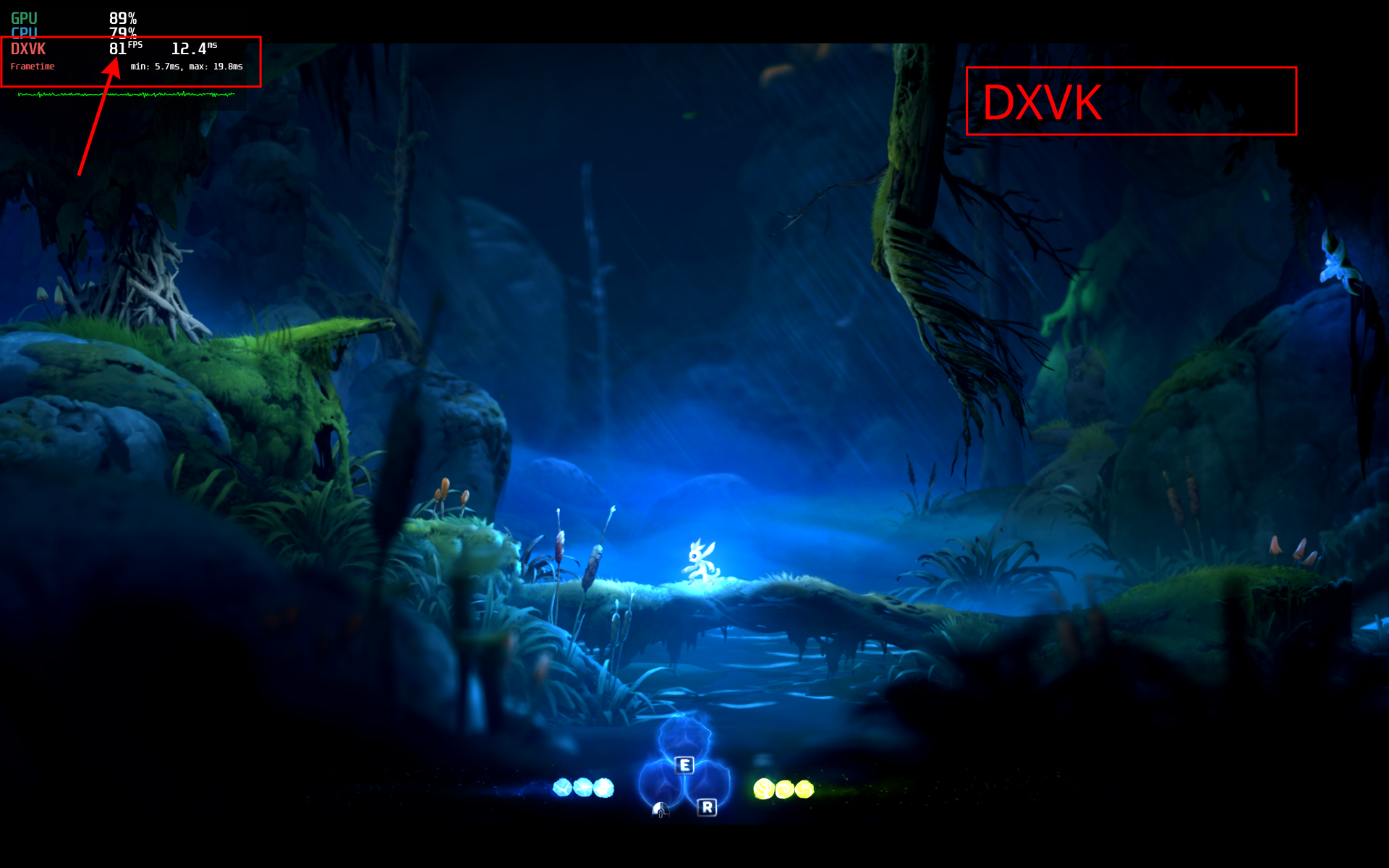
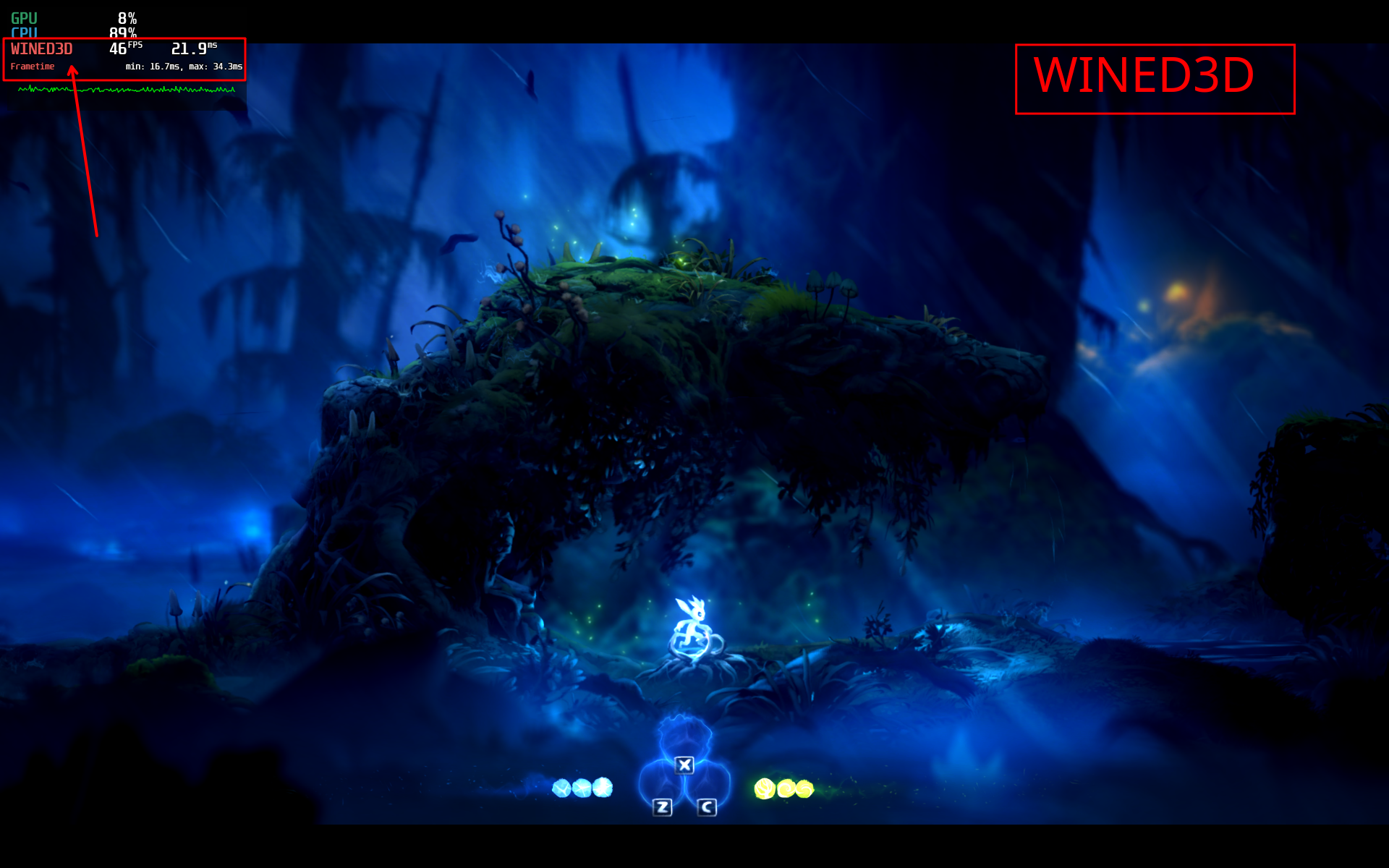
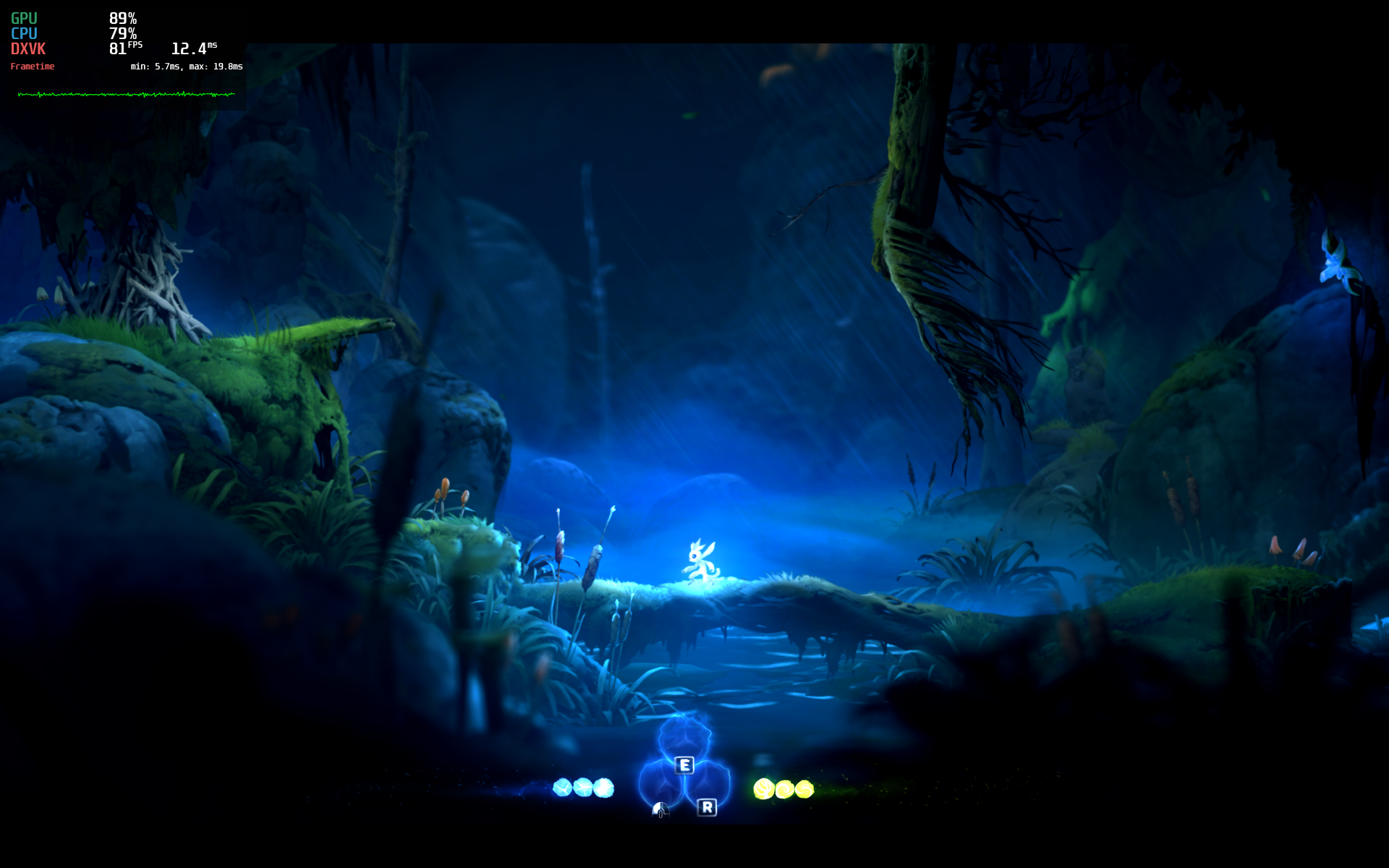
The reason why we should use DXVK or DirectX Vulkan layers instead of WineD3D is because Wine's default translation layer (WineD3D) converts DirectX to OpenGL, which isn't fully optimized for modern games. Using DXVK however makes sure that we are using a Vulkan-based translation layer, which performs much better on modern GPUs. This is exactly where the dxvk vs wined3d performance debate comes in: DXVK consistently delivers higher frame rates and smoother gameplay. For instance, when I tried Ori and the Will of the Wisps, one of the best indie games I've ever played, I was experiencing huge fps drops and constant stuttering with WineD3D. But when I switched to DXVK, the game was running smoothly with double the FPS and stuttering was simply non-existent. For comparison, I have attached the screenshots of the game with DXVK on the left and WineD3D on the right.
2.1.2: Install Windows DLLs and Frameworks
After DirectX, this is where most real-world issues start. Many Windows games and applications will simply fail to launch if components like .NET, vcrun, or d3dx are missing.
From experience, installing everything by default is not a good approach. It quickly turns the prefix into a bloated mess and can introduce unnecessary conflicts. I prefer installing only the components that a specific game or application actually needs.
In this section, we’ll follow that same approach: a clean WINEPREFIX, minimal required libraries, and better control over what gets installed.
2.1.2.1: Visual C++ Redistributable or VCRun
- Open terminal and run:
WINEPREFIX=~/wine/my-games winetricks vcrun2005 vcrun2008 vcrun2010 vcrun2012 vcrun2013 vcrun2015 vcrun2017 vcrun2019 vcrun2022 - This winetricks vcrun install command downloads and installs all major Visual C++ runtimes into your prefix, mimicking a fresh Windows system. It’s the recommended way to cover most game dependencies in one go.
- After running the above command, Winetricks will pop up VCRun installation windows multiple times as it will install both x86 and x64 versions just like we do on Windows.
- Just tick the box for License agreement and click on Install.


- Important: When Winetricks reaches to install vcrun2017 or any vcrun20xx it might close the process and show this error on terminal:
Warning: error: vcrun2017 conflicts with vcrun2015 etc
- To resolve this, just run the same command again with --force flag, but excluding the previous vcrun20xx, like:
WINEPREFIX=~/wine/my-games winetricks --force vcrun2017 vcrun2019 vcrun2022


2.1.2.2: Install .Net Frameworks
- Same as before, run in the terminal:
WINEPREFIX=~/wine/my-games winetricks dotnet48 dotnet472 - Same as installing vcrun, winetricks will prompt multiple times the dotnet installation window, just click on Accept and Install.
- For some dotnet versions, it may say failure to install, if it happens then just click on Cancel or Close and it will eventually finish installing all installable dotnet versions on your WINEPREFIX.


2.1.2.3: Install DirectX Components
- Run the following command:
WINEPREFIX=~/wine/my-games winetricks d3dx9 d3dx10 d3dx11_43 d3dcompiler_43 d3dcompiler_47


2.1.2.4: Install Fonts
- Run:
WINEPREFIX=~/wine/my-games winetricks corefonts
With fonts, DirectX components, .NET Framework, and VCRun installed, our Wineprefix is now fully set up and ready. At this point, we should be able to run most games smoothly without needing any extra tweaks.
2.2: Create WINEPREFIX with WineGUI
Creating a Wineprefix with WineGUI is super easy, just like what we did in Bottles. Everything is fully graphical, so you don’t have to mess with the terminal at all. In this step, we’ll create a new machine (WINEPREFIX) and set it up with all the essential components like DirectX, VCRun runtimes, fonts, and .NET frameworks, all with just a few clicks.
From your application menu open WineGUI or run winegui in the terminal to open WineGUI.
2.2.1: Create a New Wine Machine/WINEPREFIX with WineGUI
- Click on + New, a pop-up window will appear on your screen which will ask you to enter WINEPREFIX name and Windows Version.
- Enter the name you want to give your WINEPREFIX (e.g., Gaming) and select Windows Version. For my machine, I am choosing Windows 10 (64-bit).
- Next, it will ask for Audio Driver, for better sound pipeline choose PulseAudio and click on Apply.


- It will take short time to create and configure the default settings for new WINEPREFIX and once created we can configure it further to acuatally play Windows games and application from WineGUI app.


2.2.2: Configure Wine Machine
Now that our new Wine machine (basically a WINEPREFIX) is created, we can start installing all the required components and libraries with just a few clicks. Everything we previously did through commands in the manual method can now be handled easily from the GUI, no terminal needed.
- Click on Configure, a pop-up window wull appear.
- Now from the configuration window, we can install:
- Graphic Packages: DirectX components
- Fonts: Corefonts
- Visual C++: VCRun runtimes
- .Net Packages: Dotnet frameworks
- Click on the Component you want to install and install it one by one.


2.2.3: Add Games on WineGUI
- In the right sidebar of WineGUI, click on +, a pop-up window will appear.
- Enter the game name in the name field and select the game's .exe by clicking on the Select executable button and navigating to your game folder.
- After selecting the .exe click on Save and your game will be added to WineGUI.


Step 3: Run Games with Wine
In this step, we will launch games from both CLI and WineGUI from the same WINEPREFIX we created in Step 2.1. However we will need to run manual commands to run each game which is best suited for testing purposes but we can also create a one time script and create a shortcut on our desktop but first let's run some Windows games and applications on Linux. I'll be demonstrating from my game library but you can apply the same commands and settings to your games.
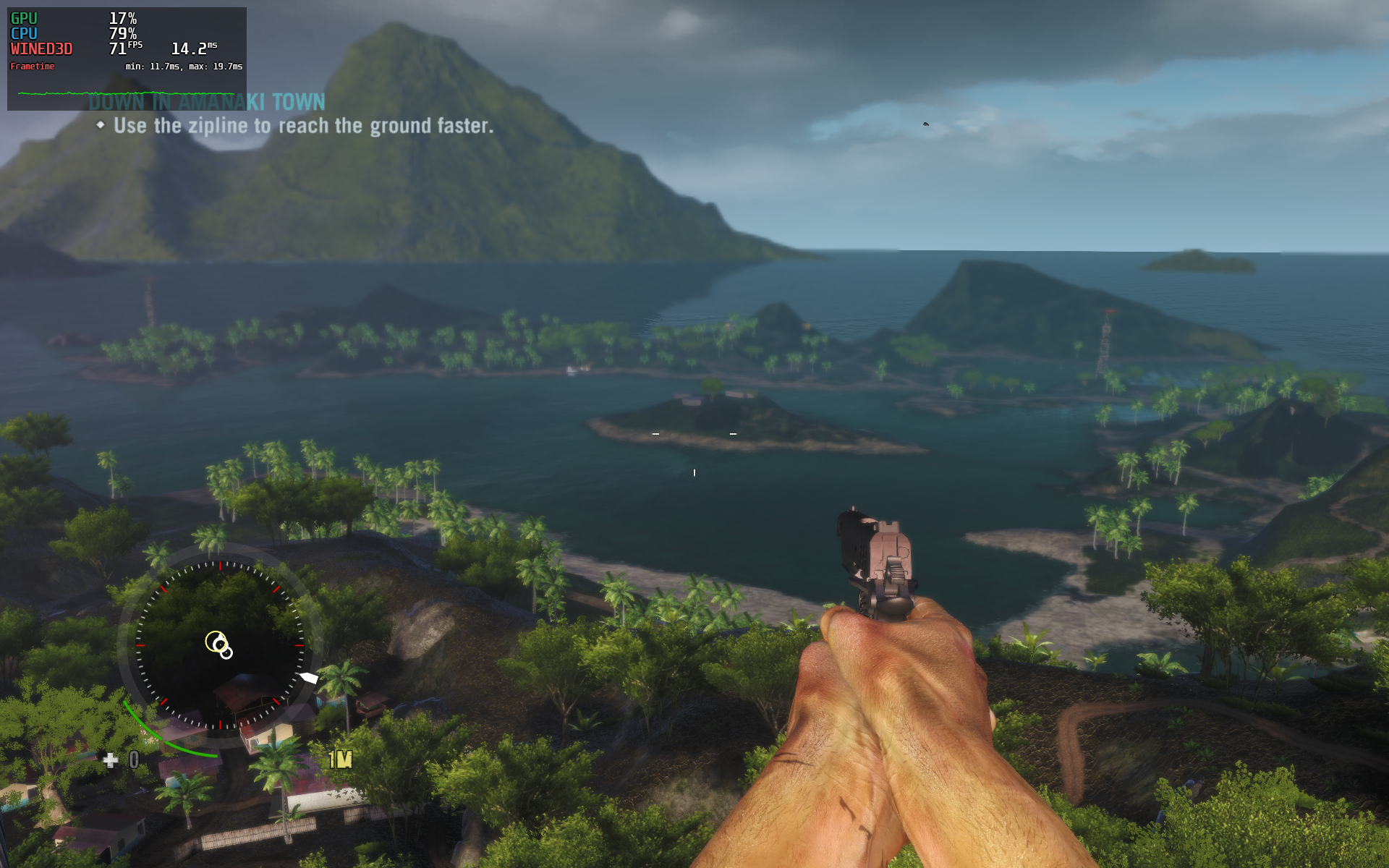
Far Cry 3: Remastered on Linux
- Open terminal and run:
WINEPREFIX=~/wine/my-game wine "path-to-game-folder/farcry3.exe" - For easiest way, just open WineGUI and click on the game you added and it will launch shortyl.
Need for Speed Heat on Linux

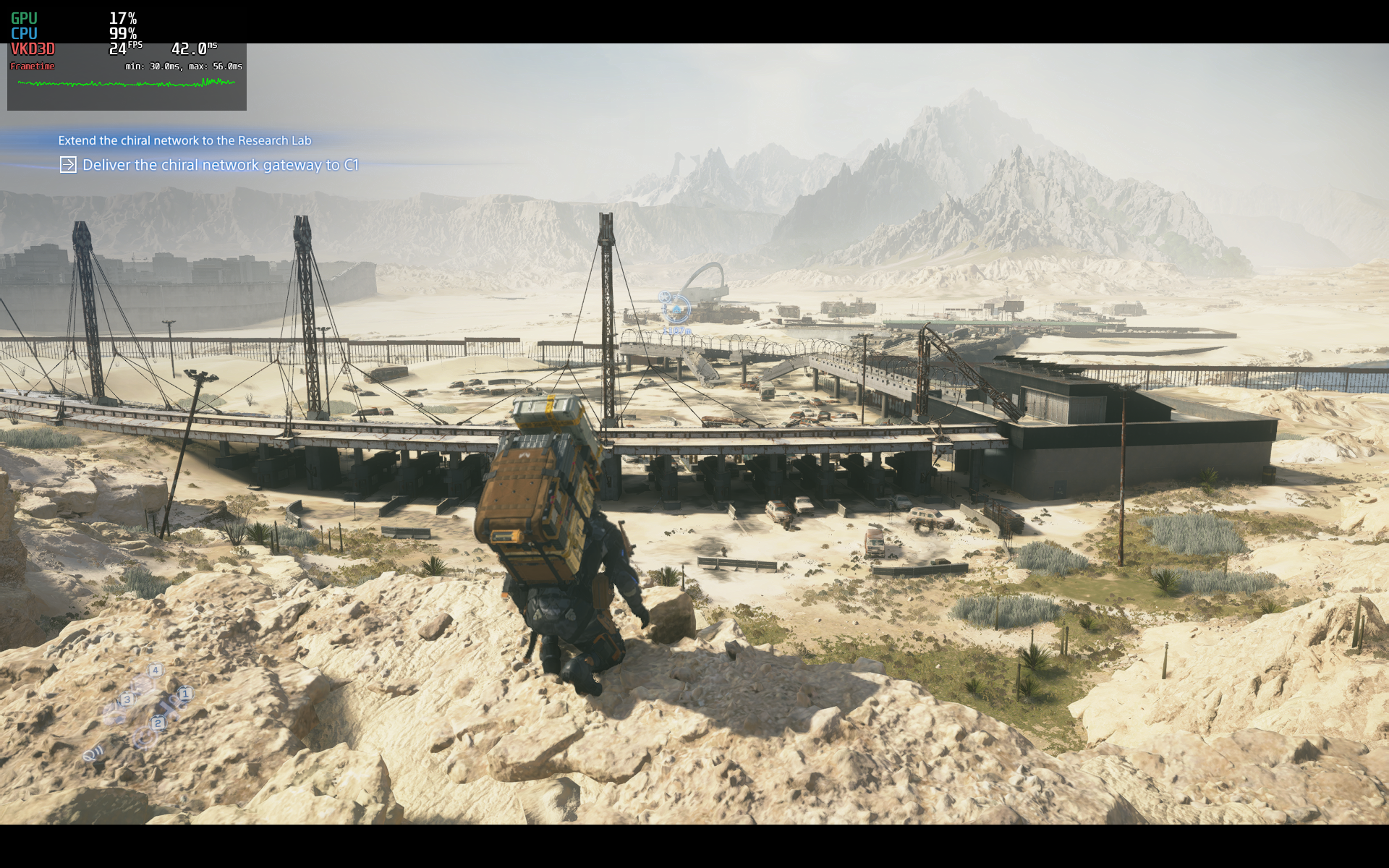
Death Stranding 2: On the Beach on the Linux
Ori and the Will of the Wisp on Linux
Frequently Asked Questions: Wine on Arch Linux (Part 3)
What is the difference between Wine, Proton, and Bottles?
Wine is the core Windows-to-Linux translation layer. Proton is Valve’s gaming-focused Wine with extra patches, bundled into Steam. Bottles is a graphical manager that handles multiple Wine environments (prefixes) without terminal work.
Why should I use Wine directly instead of Bottles or Steam?
Direct Wine gives full control: manual prefixes, selective component installation (DXVK, VKD3D, .NET, VCRun), and no wrapper bloat. Ideal for troubleshooting, learning Windows compatibility, or running older/niche software that GUI tools may mishandle.
What is a WINEPREFIX and why do I need it?
A WINEPREFIX is a self-contained “fake Windows” folder with its own C: drive, registry, and installed programs. It isolates applications, avoids conflicts, and lets you test different setups (e.g., one prefix for gaming, another for office tools).
What are wine-mono and wine-gecko? Do I need them?
wine-mono provides .NET support (needed by many games). wine-gecko is an embedded web engine for HTML dialogs like EULAs. Install both to prevent common “missing library” errors.
What is the difference between wine and wine-staging?
wine-staging includes experimental patches for better performance, newer DirectX features, and game compatibility. Use it for recent AAA titles. For maximum stability, stick with the standard wine package.
Why do I need to install DXVK and VKD3D?
DXVK (DirectX 9–11) and VKD3D (DirectX 12) translate DirectX to Vulkan, delivering far better performance and stability than Wine’s default OpenGL translation (WineD3D). They’re essential for modern games.
How do I know which Windows components (VC++ runtime, .NET) my game needs?
Check the game’s system requirements or its “redist” folder. Missing DLL errors (like msvcp140.dll) point to a specific Visual C++ runtime. Install only what’s needed using winetricks or WineGUI.
What is WineGUI and do I really need it?
WineGUI is a free graphical interface to manage prefixes, install components, and launch apps. It’s optional—use it for convenience, or stick to the terminal if you prefer manual control.
How do I run a game or application with a specific WINEPREFIX from the terminal?
Use the WINEPREFIX variable: WINEPREFIX=~/wine/my-games wine "path/to/game.exe". To save typing, create a shell script with that line and make it executable (chmod +x script.sh).
What are the most common mistakes when setting up Wine on Arch Linux?
Not enabling multilib (32-bit support), forgetting wine-mono/wine-gecko, blindly installing all components (bloating prefixes), and running Wine as root (dangerous). Stick to only what each game needs.
Can I run 32-bit and 64-bit games in the same WINEPREFIX?
Yes, but it’s cleaner to use separate prefixes—one for 32‑bit games, another for 64‑bit. A 64‑bit prefix can run both, but mixing can cause library conflicts. WineGUI makes managing multiple prefixes easy.
Why do I get “could not resolve host” or slow downloads when installing DXVK/VKD3D?
This is usually due to slow Arch mirrors or DNS issues. Update your mirrorlist with reflector or switch to public DNS (e.g., 8.8.8.8). A dedicated guide on fixing slow downloads is linked in the article.
How do I uninstall a WINEPREFIX?
Simply delete the prefix folder: rm -rf ~/wine/my-games. Back up any game saves from its drive_c folder first. Removing a prefix doesn’t affect other prefixes or your main system.
What is the performance difference between Wine, Proton, and native Linux gaming?
With DXVK/VKD3D, Wine achieves near‑native performance (90–100% of Windows). Proton is Wine tuned by Valve, so it’s comparable. Native Linux ports usually perform best, but not all games have them.
Can I use Wine alongside Steam and Bottles?
Yes. Steam and Bottles use their own internal Wine versions and prefixes, completely separate from your system‑wide Wine installation. They can coexist without interfering.
How do I install Winetricks and what is it used for?
Winetricks automates installing common Windows components (VC++ runtimes, .NET, DirectX, fonts) into a prefix. Install with sudo pacman -S winetricks, then use: WINEPREFIX=~/wine/my-games winetricks vcrun2022 dotnet48.
How Wine Works on Linux (For Beginners)
To understand why Wine gives more control, it helps to see how it is structured. Below is a simplified view of what happens when you run a Windows application using Wine:
            Windows Application (.exe)
                      │
                      ▼
                  Wine Loader
                      │
                      ▼
           Windows API Translation Layer
                      │
                      ▼
       Linux Libraries (glibc, drivers, Vulkan, etc.)
                      │
                      ▼
                 Linux Kernel

Instead of emulating Windows, Wine translates Windows API calls into native Linux calls in real time.
Key Components
- Wine Prefix: A directory that acts like a fake Windows installation (usually located in ~/.wine). Each prefix has its own registry, drive (/Cdrive:) structure, and installed applications.
- winecfg: A configuration tool used to change Windows versions, manage libraries, and adjust graphics settings.
- 32-bit Libraries (Multilib): Many Windows games still depend on 32-bit components. Without multilib enabled, Wine cannot properly run them.
When we use Steam or Bottles, they create and manage prefixes automatically. When we use Wine directly, you manage them yourself, which gives us more flexibility.
Wine vs Proton vs Bottles: What’s the Difference?
When I first installed three, i got confused on which one to use and what is the role of all three tools, its like all works the same or gives you the same result (run Windows games and application on Linux) so why do we need each tool separateyl. Well i made this practical comparison table to clarify their roles.
| Tool | What It Is | Best For | Level of Control |
|---|---|---|---|
| Wine | Core compatibility layer | Manual setups, advanced configuration | High |
| Proton | Wine + gaming patches (by Valve) | Steam games | Medium |
| Bottles | Graphical manager built on Wine | Epic, GOG, standalone .exe files | Medium to High |
In other terms:
- Wine is the engine.
- Proton is a gaming-focused version of Wine used by Steam.
- Bottles is a user-friendly interface that manages Wine environments.
- Both Steam and Bottles includes Wine by default but standalone Wine or globally installed Wine gives us more control.
If you want maximum control and deeper understanding of how Windows compatibility works on Linux,using Wine directly is the best learning path.
⚙️ Final Thoughts: When You Take Full Control with Wine
I'll be straight with you. After getting comfortable with Bottles, moving to plain Wine felt like going backwards at first. No polished UI, no one-click installs, no safety nets. Just you, a terminal, and a Windows executable that may or may not cooperate.
But once it clicks, it really clicks. Wine gives you complete control. You decide the prefix, the libraries, the overrides, everything. No abstraction layer. No guessing what’s happening behind the scenes.
That’s the trade-off. Bottles is convenience. Wine is control. I still use Bottles for quick installs, but when something refuses to work or needs fine-tuning, I go straight to Wine. It’s not harder. It’s just more manual.
Wine vs Bottles vs Proton
| Scenario | Wine (Manual) | Bottles | Steam Proton |
|---|---|---|---|
| Setup | Manual prefix + config | Pre-configured environments | Automatic via Steam |
| Dependency Handling | Winetricks (manual) | Built-in installers | Handled by Proton |
| Ease of Use | Low | High | Very High |
| Control | Full control | Limited UI-based control | Minimal control |
| Best Use Case | Problem-solving, edge cases | Daily gaming | Steam library |
What You've Actually Learned
- Wine is the foundation. Bottles and Proton are just layers built on top of it.
- Prefixes are everything. Treat each game like its own mini Windows install.
- Winetricks replaces installers. You manually add DirectX, VC++, and other dependencies.
- When things break, Wine fixes them. It’s your fallback when GUI tools fail.
- You don’t always need it. For most users, Bottles or Proton is enough.
The real takeaway? You now understand the full stack. From Proton to Bottles to raw Wine, you’re no longer guessing. You’re choosing the right tool for the job.
That wraps up the Wine side of things. You now have full control over how Windows applications run on your system, whether you choose convenience or precision. From here, it’s just about choosing what fits your workflow.
Less guesswork, more control. 1O1 out! See you in the next one. ⚙️